



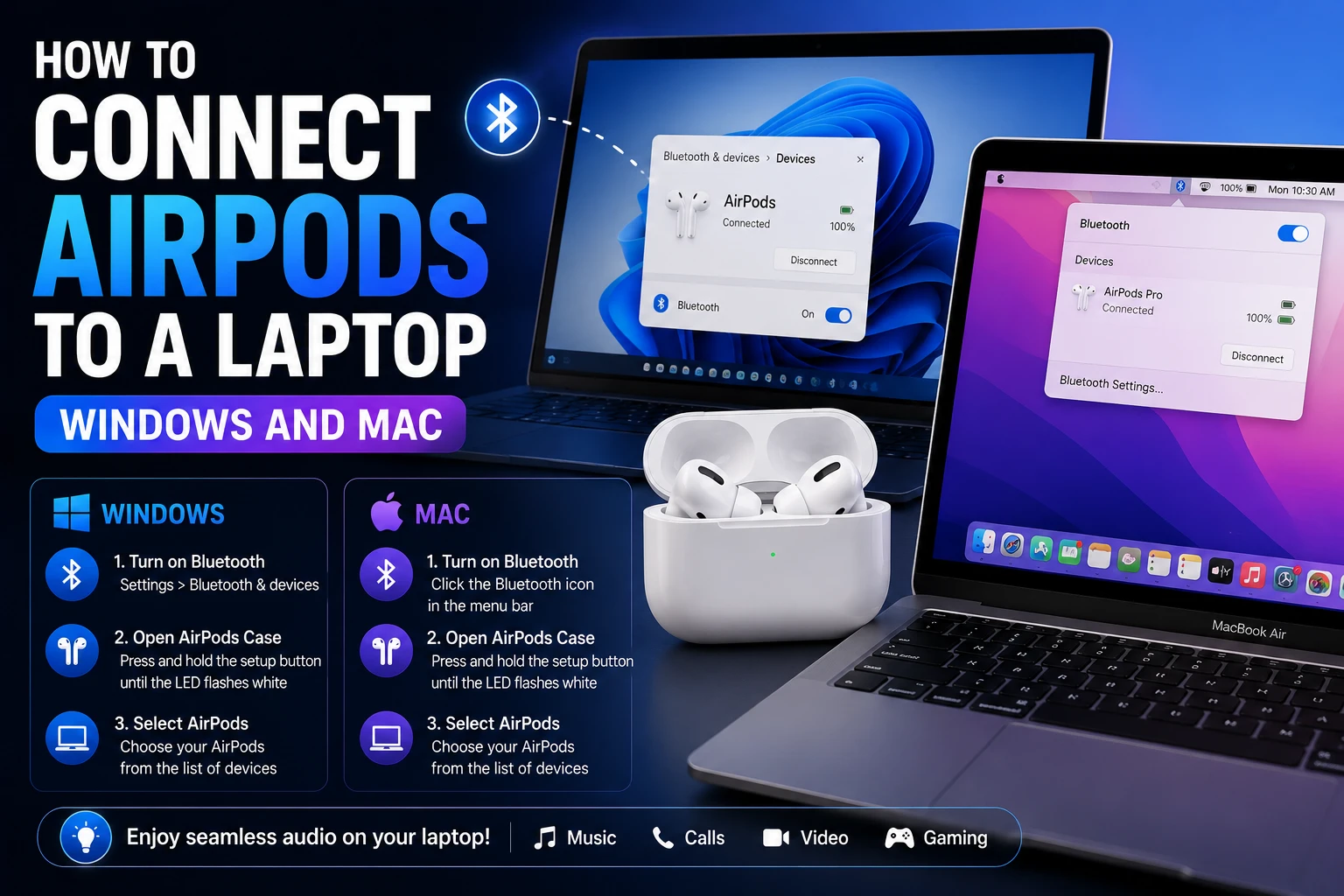
On a Windows laptop, put the AirPods into pairing mode — for AirPods 4 and AirPods Pro 3, double-tap the front of the open case; for AirPods 1, 2, 3 and Pro 1 or 2, hold the setup button on the back for about 5 seconds — then go to Settings > Bluetooth & devices > Add device > Bluetooth and select them. On a Mac signed in to the same Apple Account, they are already there in the Bluetooth or volume menu.
The pairing gesture changed with the newest models, which is why half the guides online no longer work. There is no setup button on an AirPods Pro 3 case. Below is the correct method per model, from Apple’s own AirPods user guide, plus what you give up when you leave the Apple ecosystem.
Step 1: put your AirPods into pairing mode
Apple documents three different gestures. Using the wrong one for your model is the single most common reason AirPods never appear in the Windows device list.
| Model | What to do | Confirmation |
|---|---|---|
| AirPods 4, AirPods Pro 3 | Open the case with the AirPods inside, hold it next to the laptop, then double-tap the front of the case | Status light flashes white |
| AirPods 1, 2, 3; AirPods Pro 1, 2 | With AirPods in the case, open the lid, then press and hold the setup button on the back for about 5 seconds | Status light flashes white |
| AirPods Max | Press and hold the listening mode button for about 5 seconds | Status light flashes white |
In all three cases the target is the same: a white flashing light. Amber, green or solid white means the AirPods are not discoverable, and no amount of searching from the laptop will find them. Keep the earbuds in the open case while you pair — closing the lid ends pairing mode.
Step 2: pair from Windows 11
- Select Start, then Settings, then Bluetooth & devices.
- Make sure the Bluetooth toggle is On.
- Select Add device, then Bluetooth.
- Wait for your AirPods to appear in the list, then select them.
- Select Done when Windows reports the device is ready.
Windows 10 follows the same path under Settings > Devices > Bluetooth & other devices > Add Bluetooth or other device > Bluetooth.
Microsoft’s own note applies here: how you make a Bluetooth device discoverable depends on the device, and you should check the manufacturer’s documentation. For AirPods, that is Step 1 above — Windows cannot put them into pairing mode for you.
If Swift Pair fires instead
Windows supports Swift Pair, which shows a notification when a supported device is nearby and in pairing mode. AirPods are not a Swift Pair device, so if you see that notification it belongs to something else in the room. Use Add device manually.
Step 3: make Windows actually use them
Pairing and selecting as output are two separate things, and Windows does not always do the second automatically. If audio still plays through the laptop speakers:
- Select the volume icon in the taskbar.
- Select the arrow next to the volume slider to expand the output list.
- Choose your AirPods.
You will often see two AirPods entries: one labelled Stereo and one Hands-Free or Headset. This is not a bug, and choosing correctly matters more than any other setting:
- Stereo — full-quality audio, microphone disabled. Use for music, video and games.
- Hands-Free / Headset — microphone enabled, audio quality drops sharply to a narrowband voice profile. Use for calls only.
Bluetooth cannot run high-quality playback and the microphone at the same time on these profiles. That muffled, telephone-quality sound people report on Windows is almost always the Hands-Free profile being active because an app grabbed the microphone.
On a Mac, it is usually already done
If your AirPods are paired with an iPhone and the Mac is signed in to the same Apple Account with Bluetooth on, they are available without pairing again. Open the Control Centre or the volume menu in the menu bar and pick them from the output list.
If they do not appear, pair them manually: open the case beside the Mac, go to System Settings > Bluetooth, and select Connect next to the AirPods.
What you lose on a non-Apple laptop
Apple is direct about the trade: you can use AirPods as a Bluetooth headset with a non-Apple device — “You can’t use Siri, but you can listen and talk.”
In practice, on Windows you lose:
- Siri and voice activation.
- Automatic ear detection — pausing when you take an earbud out generally stops working.
- Battery percentage in the interface. Windows may show a single combined figure or none at all.
- Automatic switching between devices.
- Firmware updates — these require an iPhone, iPad or Mac. AirPods paired only to a PC will not update.
Noise cancellation and Transparency mode do keep working, because those run on the earbuds themselves. Press and hold the stem — or the noise control button on AirPods Max — to switch between them.
When they will not connect
Work through these in order; the first two fix most cases:
- Check the light is flashing white. Not amber, not green. If it is not white, repeat the pairing gesture for your exact model.
- Remove the old pairing. In Bluetooth & devices, find any existing AirPods entry, select the three dots, and choose Remove device. A stale pairing blocks a fresh one. Then pair again from scratch.
- Charge everything. A case below roughly 10% often fails to hold pairing mode.
- Restart the Bluetooth radio. Toggle Bluetooth off, wait ten seconds, toggle it on. If the toggle is missing entirely, the adapter driver has failed — check Device Manager.
- Reset the AirPods. With the earbuds in the case and the lid open, hold the setup button for about 15 seconds until the status light flashes amber and then white. This clears every paired device, so you will need to re-pair your phone too.
One hardware caveat: many desktop PCs have no Bluetooth radio at all. If Bluetooth & devices shows no Bluetooth toggle, a USB Bluetooth adapter is the fix — nothing on the AirPods side will help.
Frequently Asked Questions
How do I put AirPods Pro 3 in pairing mode?
AirPods Pro 3 and AirPods 4 do not use the setup button method. Apple’s instruction is to open the case with the AirPods inside, hold it next to the device, then double-tap the front of the case so the status light flashes white. Older models — AirPods 1, 2, 3 and AirPods Pro 1 or 2 — use the setup button on the back of the case, held for about 5 seconds.
Why do my AirPods sound bad on my Windows laptop?
Windows has switched to the Hands-Free or Headset profile, which enables the microphone at the cost of a narrowband voice-quality audio stream. Open the volume flyout, expand the output list, and select the AirPods entry labelled Stereo instead. You cannot have full audio quality and the AirPods microphone active simultaneously.
Can I use AirPods with a Windows laptop at all?
Yes. Apple documents pairing AirPods with non-Apple devices as a supported Bluetooth headset use case — in Apple’s words, you can’t use Siri, but you can listen and talk. Noise cancellation and Transparency mode still work. Ear detection, battery readouts, automatic switching and firmware updates generally do not.
Why don’t my AirPods show up in the Bluetooth list?
Almost always because they are not in pairing mode — the status light must be flashing white. Check you are using the right gesture for your model, keep the case open with the earbuds inside, and remove any existing AirPods entry from Windows before trying again. If the laptop shows no Bluetooth toggle at all, it has no Bluetooth adapter.
Can I connect AirPods to a laptop and a phone at the same time?
Not usefully. Automatic switching between devices is an Apple-ecosystem feature and does not extend to Windows. A Windows laptop and an iPhone can both hold the pairing, but audio plays from one at a time and switching means reconnecting manually from whichever device you want to use.
The bottom line
Get the white flashing light using the right gesture for your model, add the AirPods from Bluetooth & devices > Add device > Bluetooth, then pick the Stereo output rather than Hands-Free for anything that is not a call. Expect to lose Siri, ear detection and firmware updates on Windows — everything else, including noise cancellation, carries over.
More audio and peripheral guides on Tech2Post: the Sony Headphones Connect app rename, connecting a PS5 controller to a PC, and choosing a rugged smartwatch.
Related reading: customizing the Windows 11 taskbar where the volume flyout lives, the Windows 11 Installation Assistant, optimizing a gaming PC, what latency actually means — relevant to Bluetooth audio delay — which iPhones have eSIM, and MacBook Neo specs and price.
Sources: Apple — Pair AirPods with a non-Apple device and Microsoft — Pair a Bluetooth device in Windows. Per-model pairing gestures and the Windows Add device path are taken from those documents.


