



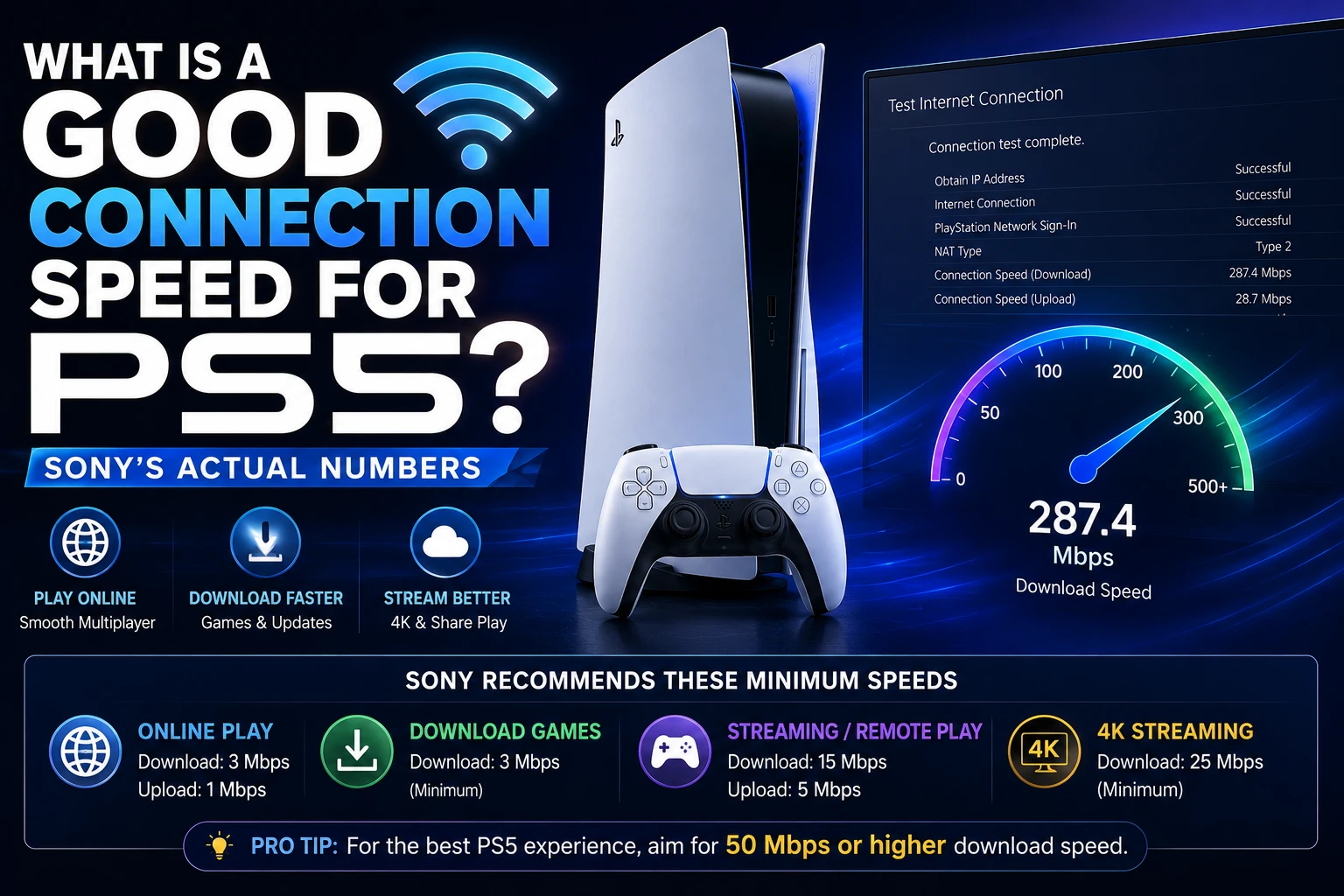
For ordinary PS5 gaming, 15 Mbps down and up is the number Sony points to — its stated minimum is 5 Mbps, and it recommends at least 15 Mbps for best performance. That is far lower than most people expect, because online multiplayer is limited by latency, not bandwidth. Downloads and cloud streaming are the two things that genuinely want a fast pipe.
PlayStation’s own documentation splits the requirements by task, and the gap between them is large: 5 Mbps to play, 52 Mbps recommended to stream a game at 4K. Here is what each activity actually needs, and why a 900 Mbps connection can still deliver a laggy match.
The numbers, by what you are doing
| Activity | Sony’s minimum | Sony’s recommendation |
|---|---|---|
| Online play / Remote Play | 5 Mbps up and down | 15 Mbps up and down |
| Cloud streaming session (any quality) | 5 Mbps up and down | — |
| Cloud streaming at 720p | 7 Mbps | 13 Mbps |
| Cloud streaming at 1080p | 13 Mbps | 23 Mbps |
| Cloud streaming at 1440p | — | 38 Mbps |
| Cloud streaming at 4K (2160p) | — | 52 Mbps |
| Game downloads | Any | As fast as you can get |
Note that Sony quotes Remote Play requirements as symmetric — 5 Mbps minimum and 15 Mbps recommended for both upload and download. That catches out cable and DSL customers, whose upload is often a tenth of their download. A 300/10 connection meets the recommendation; a 100/3 connection does not, no matter how good the first number looks.
Why 15 Mbps is enough for competitive multiplayer
An online match sends tiny packets — player positions, inputs, state changes — many times per second. The total data rate is trivial. What decides whether the game feels responsive is how long each packet takes to make the round trip, and how consistently.
Three measurements matter, and only one of them is speed:
- Latency (ping) — round-trip time in milliseconds. Under 50 ms feels immediate; over 100 ms is noticeable in anything fast; over 150 ms is where you start losing fights you should have won.
- Jitter — variation in latency. Steady 60 ms plays better than a connection swinging between 20 ms and 90 ms, because prediction code can compensate for consistency but not for surprises.
- Packet loss — packets that never arrive. Anything above roughly 1% produces rubber-banding and teleporting opponents. This is the usual culprit when the speed test looks fine and the game does not.
Upgrading from 100 Mbps to 1 Gbps changes none of these. It makes a 120 GB game download faster and nothing else. Our explainer on what latency actually means covers why the two measurements are so easily confused.
Test it on the console, not on your phone
The speed your laptop gets is not the speed the PS5 gets. Test on the hardware that matters:
- From the PS5 home screen, go to Settings.
- Select Network.
- Select Connection Status.
- Select Test Internet Connection.
The console reports download speed, upload speed, NAT type and whether it reached PlayStation Network. Read the results in this order:
- Both speeds at or above 15 Mbps? Bandwidth is not your problem.
- NAT Type 1 or 2? Good. Type 3 means the console is behind a restrictive router configuration and will struggle to connect to other players — that is a router fix, not a speed fix.
- Download far below your plan? Now look at Wi-Fi placement or switch to Ethernet.
PS5 speed test results are also known to fluctuate between runs. Run it three times before drawing conclusions from one bad number.
Wired beats faster
Sony’s own Remote Play troubleshooting recommends, in this order: use a 5 GHz Wi-Fi network, and on a PC or Mac try using a wired connection if possible. It also suggests pausing downloads on other devices and disconnecting devices from the Wi-Fi entirely.
That advice generalises to the console itself. An Ethernet cable to the PS5 removes the three things that ruin gaming connections — interference, contention with other devices, and variable signal strength — none of which show up on a speed test taken at a good moment.
If Ethernet is genuinely impossible, the ranked alternatives are:
- 5 GHz Wi-Fi rather than 2.4 GHz. Shorter range, far less congestion, much lower jitter.
- Move the router or the console. Walls and floors cost more signal than any setting you can change.
- Powerline or MoCA adapters. Not as good as a cable, consistently better than distant Wi-Fi.
- Wi-Fi extenders. Last resort — many halve throughput and add latency.
Also worth doing on the console side: pause background downloads while you play. The PS5 will happily saturate your line updating games in rest mode, and a download running during a match is the most common self-inflicted lag spike there is.
When more speed genuinely helps
Three cases, and they are all about volume rather than responsiveness:
- Game downloads. Modern PS5 titles run 50–150 GB. At 15 Mbps a 100 GB game takes roughly 15 hours; at 300 Mbps it takes under an hour. This is the single strongest argument for a fast plan.
- Cloud streaming at high resolution. Sony recommends 23 Mbps for 1080p, 38 Mbps for 1440p and 52 Mbps for 4K. Streaming is the one PS5 activity where headline bandwidth directly sets the picture quality.
- A busy household. Your 15 Mbps has to survive someone else’s 4K stream. Plan for the household, not the console.
Frequently Asked Questions
What is a good internet speed for PS5 gaming?
PlayStation’s stated minimum is 5 Mbps for both upload and download, and it recommends a high-speed connection with upload and download speeds of at least 15 Mbps for best performance. Online multiplayer is constrained by latency and packet loss rather than bandwidth, so exceeding 15 Mbps mainly speeds up downloads.
Is 100 Mbps enough for PS5?
Comfortably. It is well above Sony’s 15 Mbps recommendation and above the 52 Mbps recommended for 4K cloud streaming. If games still lag on a 100 Mbps line, the cause is latency, jitter, packet loss or Wi-Fi interference — not the speed of the plan.
How do I test my internet speed on PS5?
Go to Settings > Network > Connection Status > Test Internet Connection. The console reports download speed, upload speed, NAT type and PlayStation Network connectivity. Run it more than once, since results vary between tests.
Does Ethernet make a difference on PS5?
Yes, but not to your headline speed — to consistency. A cable eliminates interference, signal fade and contention with other devices, which is what causes jitter and packet loss. Sony’s own connection troubleshooting steps recommend a wired connection where possible, and 5 GHz Wi-Fi otherwise.
What internet speed do I need for PS5 cloud streaming?
Sony requires a minimum of 5 Mbps upload and download to establish a session, with a PlayStation Plus Premium membership. For picture quality it recommends 13 Mbps for 720p, 23 Mbps for 1080p, 38 Mbps for 1440p and 52 Mbps for 4K.
The bottom line
Aim for 15 Mbps up and down and you have met Sony’s recommendation for playing online. Beyond that, extra bandwidth buys faster downloads and higher cloud-streaming resolution, not better gameplay. If matches feel bad on a fast connection, stop testing speed and start looking at latency, jitter, packet loss and NAT type — and plug in a cable before changing anything else.
More PlayStation coverage on Tech2Post: PS5 repair options and costs, connecting a PS5 controller to a PC, and PS5 Black Friday deals.
Related reading: what latency actually means, optimizing a gaming PC, NVIDIA GeForce Now for the cloud-gaming comparison, Resident Evil Requiem, the best gaming desks under $800, and customizing the Windows 11 taskbar if you game on PC too.
Sources: PlayStation — Troubleshoot Remote Play connection issues and PlayStation — Cloud streaming on PS5. The 5 Mbps minimum, 15 Mbps recommendation, per-resolution streaming figures and the 5 GHz / wired guidance are quoted from those pages.


