



The Quick Answer
Every device has a screenshot shortcut. Here is the one you need, in a single table.
| Device | Press this | Where it saves |
|---|---|---|
| Windows | Win + Shift + S | Clipboard, then Pictures › Screenshots |
| Mac | Cmd + Shift + 4 | Desktop |
| Chromebook | Ctrl + Show windows | Downloads |
| iPad | Top button + Volume | Photos › Screenshots |
| iPhone | Side button + Volume up | Photos › Screenshots |
| Android | Power + Volume down | Pictures › Screenshots |
| Linux | PrtScn | Pictures, varies by desktop |
Each section below covers the full set of options for that platform — region captures, single windows, scrolling pages, and where files actually end up. Chromebook and iPad have dedicated guides of their own, because both behave differently enough to deserve one.
Windows

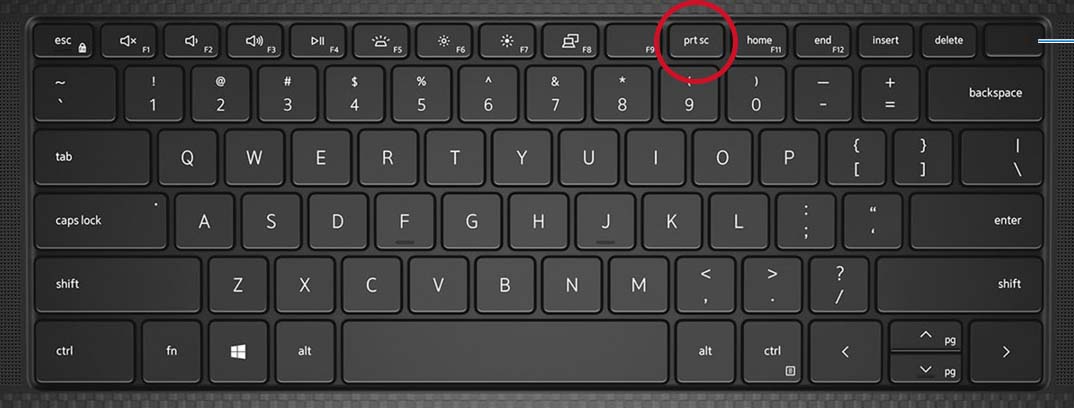

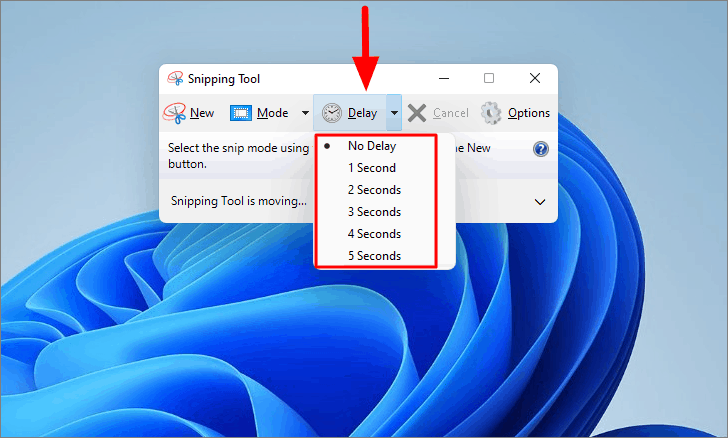

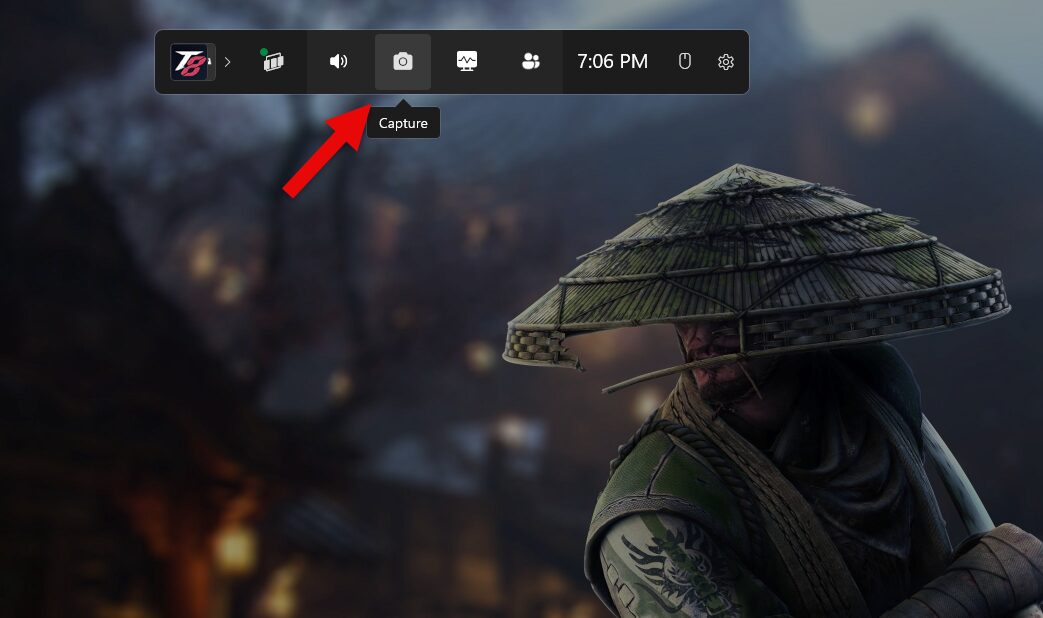

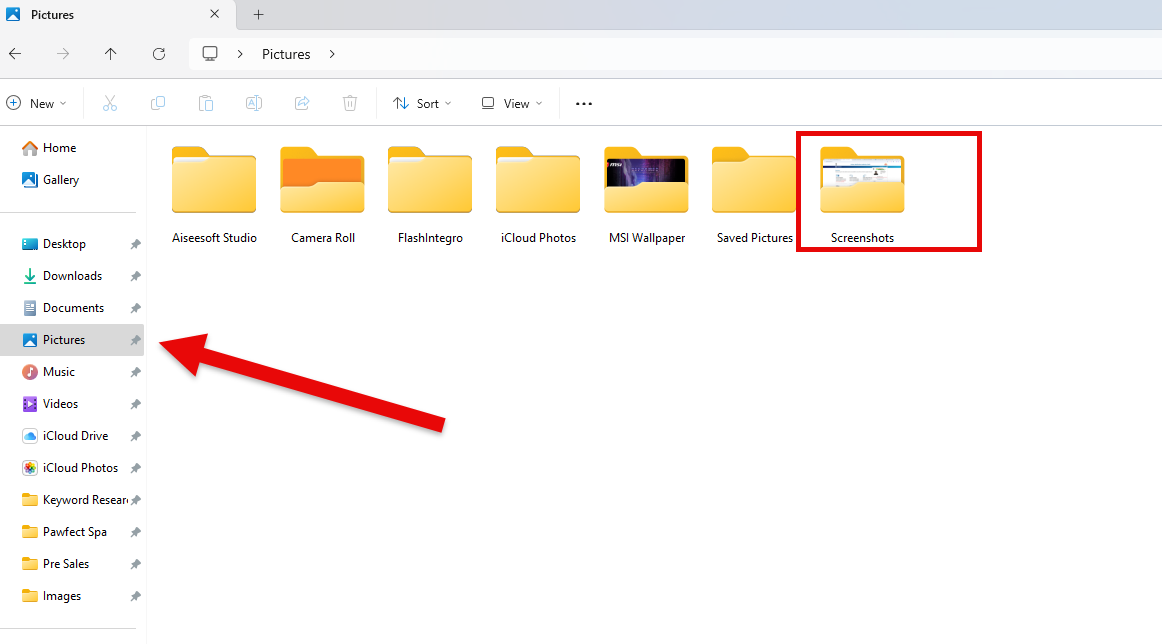
Windows gives you four routes, and the difference between them matters more than most guides admit: two copy to the clipboard and two save a file. Choosing the wrong one is why people press Print Screen and then cannot find the image anywhere.
- Win + Shift + S — dims the screen and lets you drag a region. This is the one to learn. It opens the Snipping Tool overlay with rectangle, freeform, window and full-screen modes.
- PrtScn — copies the entire screen to the clipboard only. Nothing is saved until you paste it somewhere.
- Alt + PrtScn — copies just the active window to the clipboard.
- Win + PrtScn — captures the full screen and saves a file to Pictures › Screenshots. The screen dims briefly to confirm.
Use Win + Shift + S for almost everything. A notification appears after capture; click it to annotate, crop, or save.
If multi-key shortcuts behave strangely on your PC — one key registering at a time, or a beep when you hold a modifier — the accessibility feature responsible is usually Sticky Keys, and our guide to turning off Sticky Keys in Windows 10 and 11 covers switching it off and stopping the prompt from reappearing.
Mac

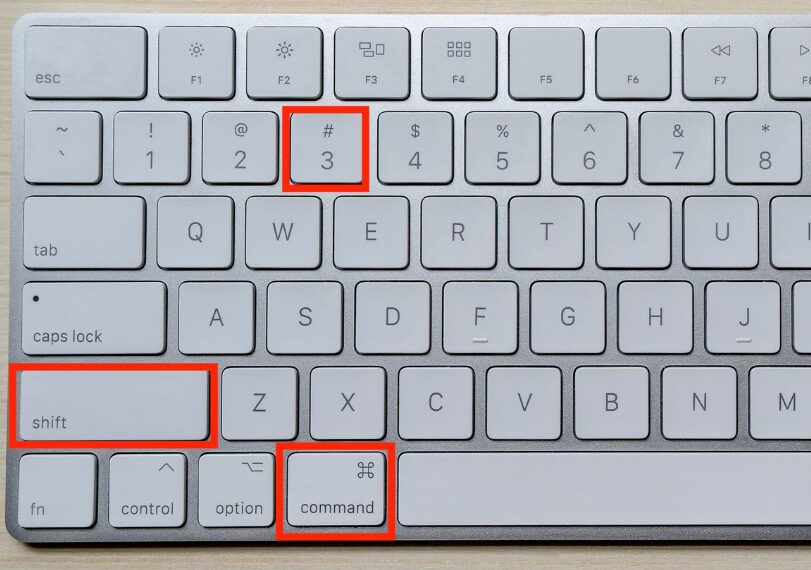
macOS uses three shortcuts, all saving straight to the Desktop as PNG files by default.
- Cmd + Shift + 3 — the entire screen.
- Cmd + Shift + 4 — crosshairs appear; drag to select a region.
- Cmd + Shift + 4, then Space — the cursor becomes a camera; click any window to capture it cleanly, complete with its drop shadow.
- Cmd + Shift + 5 — opens the full Screenshot toolbar, which adds screen recording, a capture timer, and control over where files save.
That third one — Cmd + Shift + 4 then Space — is the most useful and least known shortcut on the platform. It produces a perfectly cropped window capture with no manual dragging at all.
Add Ctrl to any of these to copy to the clipboard instead of writing a file.
Chromebook
Chromebooks have no Print Screen key and never have. The equivalent is the Show windows key in the top row, marked with a rectangle and two lines, sitting where F5 would be on a Windows keyboard.
- Ctrl + Show windows — captures the whole screen immediately.
- Ctrl + Shift + Show windows — opens the Screen capture toolbar for partial, window, and video capture.
- Power + Volume down — the tablet-mode equivalent, for detachables with the keyboard removed.
Files go to the Downloads folder, which on ChromeOS is stored locally rather than in Google Drive — a distinction that catches people out when they powerwash a device.
👉 Full guide: How to take a screenshot on a Chromebook — covers external keyboards, school-managed devices, screen recording, and what to do when the shortcut does nothing.
iPad
The correct combination depends on one thing: whether the iPad has a Home button.
- No Home button — press the top button and either volume button together, then release immediately.
- Home button — press the top button and the Home button together, then release immediately.
These are quick taps, not holds. Holding brings up the power-off slider or Siri instead, which is the single most common reason people believe their iPad will not take a screenshot.
With an Apple Pencil, swipe up diagonally from either bottom corner — the fastest method on the platform, and the one most Pencil owners never find.
👉 Full guide: How to take a screenshot on an iPad — covers Apple Pencil, keyboard shortcuts, AssistiveTouch when a button is broken, and full-page web captures.
iPhone
iPhone works the same way as iPad, with one difference: the volume button is specific rather than either one.
- Face ID iPhones — press the side button and volume up together, then release.
- Home button iPhones — press the side or top button and the Home button together, then release.
A thumbnail appears in the bottom-left corner. Tap it to mark up or share; ignore it and the screenshot saves to Photos on its own.
Android
Android fragments across manufacturers more than any other platform here, but one combination works essentially everywhere:
Power + Volume down, pressed together and released quickly.
Beyond that, the options depend on who made the phone:
- Three-finger swipe down — enabled by default on many Xiaomi, OnePlus, and Huawei devices; available on Samsung under Settings › Advanced features › Motions and gestures.
- Scrolling screenshots — after capturing, look for a Capture more, Scroll, or Expand button in the preview. Most manufacturers now support this for long pages.
- Google Assistant — say “take a screenshot”.
Files land in Pictures › Screenshots and appear in Google Photos if backup is on. Manufacturer skins change these details regularly, and our coverage of the Android 16 Nothing OS 4.0 rollout is a good example of how much a skin can alter stock behaviour.
Linux
Linux has no single answer, because the desktop environment decides — not the distribution. Ubuntu and Fedora both ship GNOME by default, so their behaviour matches even though the distributions differ.
On GNOME, which covers most mainstream desktops:
- PrtScn — opens the screenshot interface, where you choose area, window, or full screen, and can switch to screen recording.
- Shift + PrtScn — select an area directly.
- Alt + PrtScn — capture the active window.
On KDE Plasma, PrtScn launches Spectacle, which offers the same modes plus a delay timer.
For anything more involved — annotation, blurring, upload — Flameshot is the tool most Linux users settle on, and it is available in every major repository.
Choosing the right method
Most people default to capturing the whole screen and cropping afterwards. That is the slowest option available on every platform listed above.
| If you want to… | Use |
|---|---|
| Show one app, cleanly | Window capture — no cropping, exact edges |
| Highlight one detail | Region capture — crop at capture time |
| Document a sequence | Screen recording, then pull stills |
| Save a long web page | Full-page capture or print to PDF |
| Paste straight into chat | Clipboard capture — skip the file entirely |
After the capture
Every platform here now includes a built-in editor reached by clicking the preview that appears after capture — Markup on iPad and iPhone, Snipping Tool on Windows, Preview on Mac, Gallery on ChromeOS. For cropping, arrows, and highlighting, these are enough, and they are faster than opening anything else.
If screenshots are part of your actual work rather than something occasional, the folder fills silently and becomes unusable within months. The principles in our guide to digital asset management apply at any scale — naming, foldering, and a retention habit.
Embedding a capture into a web page or an email template sometimes calls for it as text rather than a file, which is what a Base64 code converter produces. And because most editing now happens in the browser rather than installed software, our explainer on web applications is worth a read if you are choosing tools. For repeatable workflows, several of the best AI tools for productivity now handle labelling and text extraction from screenshots automatically.
Frequently asked questions
Where do screenshots save by default?
Windows saves to Pictures › Screenshots when you use Win + PrtScn. Mac saves to the Desktop. Chromebooks save to Downloads. iPad and iPhone save to the Photos app. Android saves to Pictures › Screenshots. Plain PrtScn on Windows saves nothing at all — it only copies to the clipboard.
Why is my screenshot black?
An app blocked it. Streaming services, banking apps, and anything handling DRM-protected video deliberately prevent screen capture and produce a black image instead. This is enforced by the app, so no system setting overrides it.
How do I take a scrolling screenshot?
On iPad and iPhone, take a screenshot in Safari and tap the Full Page tab. On Android, look for Capture more or Scroll in the preview. Windows, Mac and ChromeOS have no built-in equivalent — print the page to PDF, or use a browser extension.
Does anyone get notified when I take a screenshot?
Not for ordinary apps or web pages. Some services notify for disappearing content specifically, including Snapchat and Instagram disappearing media. Regular posts, stories and standard messages do not trigger a notification.
What is the best screenshot shortcut to learn first?
Win + Shift + S on Windows and Cmd + Shift + 4 on Mac. Both let you capture exactly the region you want in one action, which removes the crop step almost everyone else is still doing.
Can I take a screenshot without any buttons?
Yes on most platforms. iPad and iPhone offer AssistiveTouch, an on-screen button configured in Accessibility settings. Chromebooks offer Screen capture in Quick Settings. Android offers Google Assistant. All are useful when a physical button has failed.
Device guides
Two devices have full guides of their own, because both differ enough from the rest that a summary is not sufficient:
- How to take a screenshot on a Chromebook — the Show windows key, external keyboards, tablet mode, and managed school devices.
- How to take a screenshot on an iPad — button combinations by model, Apple Pencil, full-page capture, and AssistiveTouch.


