


Complete Performance Optimization Guide for Gaming PC
Increase FPS, Reduce Latency & Get the Most Out of Your Hardware
Want to get more out of your gaming setup without spending a dime? Learning how to optimize PC for gaming can give you a 20 to 40 percent boost in frame rates, smoother visuals, and lower input lag.
This guide covers how to optimize gaming PC for the best experience. Whether you are pushing 144Hz or 240Hz, enabling ray tracing, or getting a competitive edge in shooters like CS2 and Valorant, we have got you covered. We will look at both NVIDIA and AMD cards, walk through Windows 11 settings, and share tips for beginners and pros alike. Most of these tweaks take just a few minutes.
How to Optimize Your PC for Gaming (Core Optimization)
Before diving into specific scenarios like 4K or competitive gaming, let us cover the basics. These foundational tweaks should be done on every gaming PC. They form the backbone of any solid gaming PC performance boost strategy.
Update GPU Drivers
Your graphics driver is the bridge between your games and your hardware. Running outdated drivers is one of the most common reasons for poor performance. New drivers often include game-specific fixes and optimizations that can increase FPS in games without any other changes.
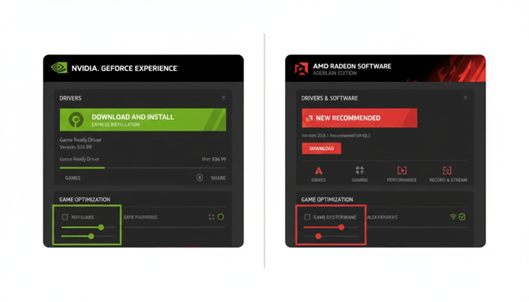
For NVIDIA users, download and install the NVIDIA App from the official NVIDIA website. Open it, go to the Drivers tab, and click Check for Updates. (The NVIDIA App replaced GeForce Experience, which is no longer supported — and unlike the old app it does not require an NVIDIA account.) Install the latest Game Ready Driver and restart your PC.
For AMD users, download AMD Adrenalin Edition. Launch the software, look for the driver update notification, and install the latest recommended driver. Reboot when prompted.
Optimize Windows Settings
Windows 11 has several built-in features to improve gaming performance Windows 11 systems. Here is what to do:
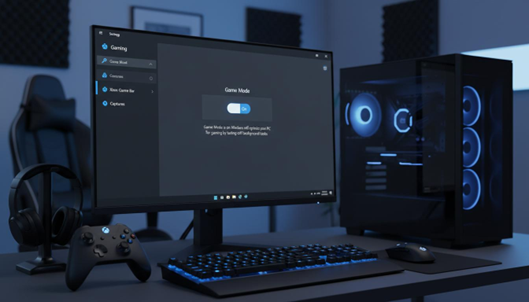
Enable Game Mode
Press Windows key plus I, click Gaming, then Game Mode, and turn it ON. This tells Windows to prioritize your game and pause background tasks. It helps reduce stuttering in games.
Choose the Right Power Plan
Open Control Panel, go to Power Options, and select High Performance. This keeps your CPU at full speed. On laptops, use it only when plugged in.
Disable Background Apps
Go to Settings, then Apps, then Startup. Turn off apps you do not need. Spotify, Discord, and OneDrive can eat up RAM and CPU your games could use.
Storage and RAM Optimization
Always install games on an SSD. SSDs cut load times dramatically versus HDDs. For RAM, enable XMP (Intel) or EXPO (AMD) in your BIOS so memory runs at full speed. This simple tweak can improve gaming performance Windows 11 users often overlook.
How to Optimize Gaming PC for High Refresh Rates (144Hz & 240Hz)
If you just bought a shiny new 144Hz or 240Hz monitor, you are not getting the full benefit until you configure everything correctly. Here is how to optimize a gaming PC for 120Hz, 144Hz and 240Hz displays.
First, make sure your monitor is actually set to its highest refresh rate. Right-click on your desktop, choose Display Settings, then scroll down to Advanced Display. Under Refresh Rate, select 144Hz (or the highest number your monitor supports). You would be surprised how many people leave it stuck at 60Hz.
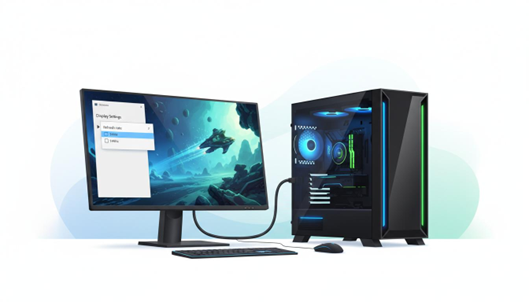
Use DisplayPort instead of HDMI whenever possible. DisplayPort 1.4 or newer can handle 144Hz at 1440p and even 4K at 120Hz without any issues. HDMI 2.1 works too, but older HDMI versions often cap out at lower refresh rates.
GPU Settings for High Refresh Rates
For NVIDIA users, open NVIDIA Control Panel. Go to Manage 3D Settings and set Max Frame Rate to a value 3 to 5 frames below your refresh rate. On a 144Hz monitor, cap it at 139 or 141 FPS. This keeps you in the G-Sync range and prevents screen tearing.
For AMD users, open AMD Adrenalin Software. Enable FreeSync in the Display tab. Under Gaming, enable Radeon Chill and set the max frame rate just below your monitor refresh rate. This helps keep frametimes smooth and consistent.
In-Game FPS Cap vs Unlimited
Many gamers think unlimited FPS is always best. It is not. When your frame rate goes way above your refresh rate, you get frame timing issues and wasted GPU heat. Cap your FPS 2 to 3 frames below your refresh rate for the smoothest experience. Use the in-game limiter if it is accurate, or use a tool like RivaTuner Statistics Server for better precision.
How to Optimize Gaming PC for Low Latency
Input lag is the delay between when you press a button and when something happens on screen. In fast games, even a few milliseconds matter. Here is how to optimize gaming PC for low latency.
Enable NVIDIA Reflex or AMD Anti-Lag
NVIDIA Reflex reduces input lag significantly. In supported games, set NVIDIA Reflex Low Latency to On. Avoid On Plus Boost mode as it can cause frame pacing issues.
For AMD users, enable Radeon Anti-Lag in Adrenalin software. Use Anti-Lag 2 where a game offers it in its own settings menu. Do not go looking for the old Anti-Lag+. AMD pulled it in driver 23.10.2 after it injected code into running games and triggered false-positive anti-cheat bans in Counter-Strike 2, Apex Legends and Call of Duty. Anti-Lag 2 replaced it with a developer-integrated, in-game toggle that anti-cheat systems do not flag.
Also Read: Nvidia GeForce NOW Launches in India
Turn Off V-Sync (Use Better Alternatives)
Traditional V-Sync adds input lag. With G-Sync or FreeSync, keep V-Sync off in games. For games without adaptive sync, try Fast Sync (NVIDIA) or Enhanced Sync (AMD) for tear-free visuals with less lag.
Network Optimization
Use wired Ethernet instead of Wi-Fi for lower ping. Disable background downloads and streaming while gaming.
How to Optimize Gaming PC for Competitive FPS Gaming
Competitive gamers need every advantage they can get. Here is how to optimize gaming PC for competitive FPS titles like Counter-Strike 2, Valorant, and Call of Duty.
Best In-Game Settings
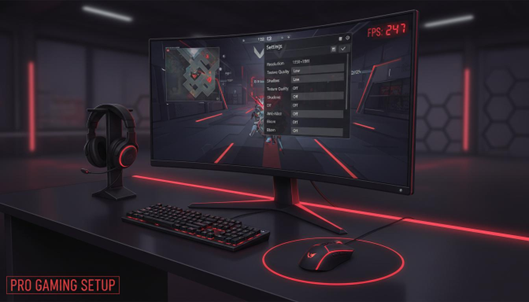
Lower graphics settings for maximum FPS. Set shadows to Low or Off, disable motion blur, minimize anti-aliasing, and reduce effects quality. These settings give you a clearer view of enemies and higher FPS. A stable 200+ FPS on a 144Hz or 240Hz monitor feels incredibly smooth.
Mouse and Peripheral Optimization
Set mouse DPI between 400 and 800 for precise aiming. Use 1000Hz polling rate. Turn off Enhance Pointer Precision in Windows mouse settings. In-game, use raw input whenever available. Disable fullscreen optimizations in the game executable properties to reduce input lag.
How to Optimize Gaming PC for Ray Tracing (NVIDIA & AMD)
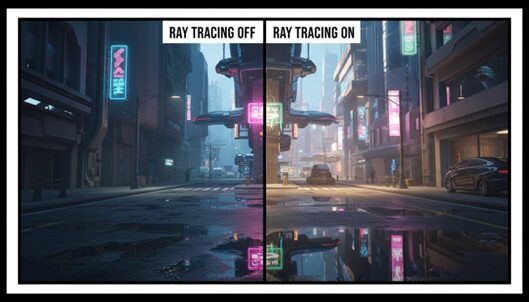
Ray tracing makes games look stunning with realistic lighting, reflections, and shadows. But it is very demanding on your GPU. Here is how to optimize gaming PC for ray tracing without tanking your frame rate.
Ray tracing simulates how light behaves in the real world. Every beam of light bounces off surfaces, creates shadows, and reflects realistically. The result is breathtaking. But all that math hits your GPU hard, which is why you need the right settings.
DLSS vs FSR: Your Performance Saviors
NVIDIA DLSS 4.5 and AMD FSR 4.1 are upscaling technologies that boost FPS when ray tracing is enabled. They render the game at a lower resolution and use AI (NVIDIA) or advanced algorithms (AMD) to upscale it back to your monitor native resolution.
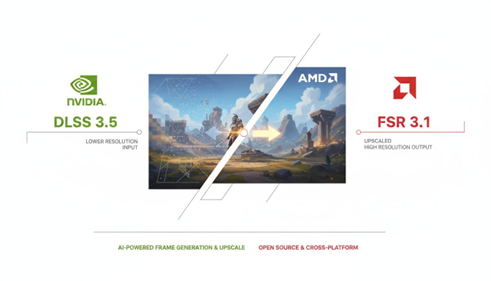
For NVIDIA RTX cards, use DLSS Quality or Balanced mode when ray tracing is on. DLSS Performance mode gives even more FPS but can look a bit softer. For AMD cards or older NVIDIA GPUs, FSR works great too. FSR is open-source and works on almost any GPU.
Best Ray Tracing Settings
Do not just turn every ray tracing option to Ultra. Be selective. Reflections usually give the biggest visual payoff. Shadows and global illumination are nice but cost more performance. Start with Medium ray tracing settings and work your way up while watching your FPS. If you drop below 60 FPS, bump DLSS or FSR to Performance mode.
How to Optimize Gaming PC for 4K & 8K Gaming
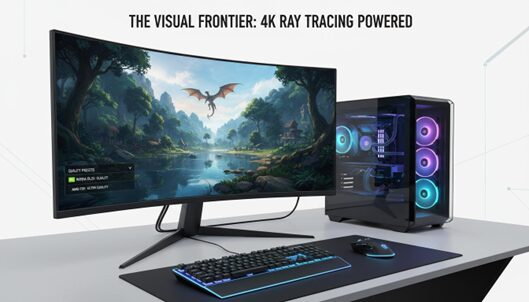
4K gaming looks incredible but demands serious GPU power. Here is how to optimize gaming PC for 4K and even 8K if you are pushing the limits.
For 4K gaming at 60 FPS with high settings, you need at least an NVIDIA RTX 4070 or AMD RX 7800 XT. For 4K at 120Hz or 144Hz, you will want an RTX 4080, 4090, or RX 7900 XTX. VRAM matters a lot at 4K. Make sure your GPU has at least 12GB, preferably 16GB or more.
Upscaling Is Essential at 4K
At 4K, DLSS and FSR become almost essential for AAA games. Use DLSS Quality mode at 4K for the best balance of image quality and performance. The higher base resolution means Quality mode looks nearly as good as native 4K while giving you a big FPS boost.
For 8K gaming, you realistically need an RTX 4090 and DLSS Performance mode just to hit playable frame rates. Honestly, 8K is still more of a tech demo than a practical gaming resolution in 2025.
Texture and Resolution Scaling
At 4K, you can afford to lower some settings without noticing. Drop shadow resolution, reduce particle effects, and turn down ambient occlusion one notch. Keep texture quality at High or Ultra since you have the VRAM to spare. The visual difference is small, but the FPS gain is real.
Advanced Optimization Tips (Pro Section)
Ready to take things further? These advanced tweaks can squeeze out extra performance but require some care.
Overclocking Your GPU
Use MSI Afterburner to increase your GPU core clock gradually. Start with plus 50 MHz, test, and increase in 25 MHz steps until you see instability. Then dial back 25 MHz for a safe daily overclock.
For memory, try plus 200 to 500 MHz on the VRAM. Always monitor temperatures and keep your GPU under 85 degrees C.
Undervolting for Cooler Temps
Undervolting reduces the voltage your GPU uses while keeping the same clock speed. This means less heat, less fan noise, and sometimes even better performance because the GPU does not throttle. In MSI Afterburner, open the voltage curve editor and flatten the curve at your desired voltage. Most GPUs can run at 950 to 1000 mV instead of the default 1100 plus mV.
Thermal and Airflow Optimization
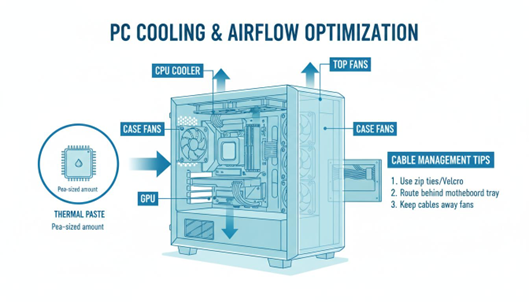
Good airflow keeps your components cool and prevents thermal throttling. Make sure your case has intake fans at the front and bottom, with exhaust fans at the top and rear. This creates a direct path for cool air to flow over your GPU and CPU. Clean your PC every few months to remove dust buildup.
BIOS Tweaks
In your BIOS, disable C-States and EIST if you want maximum performance at all times. These features save power by slowing down your CPU, which can cause micro-stutters in games. Enable Resizable BAR or Above 4G Decoding if your motherboard supports it. This lets your CPU access the full GPU memory and can improve FPS by 5 to 10 percent in some games.
NVIDIA vs AMD Optimization Settings
| Feature | NVIDIA | AMD |
| Upscaling Tech | DLSS 4.5 | FSR 4.1 |
| Latency Reduction | NVIDIA Reflex | Radeon Anti-Lag 2 |
| Frame Generation | DLSS Frame Gen | Fluid Motion Frames |
| Ray Tracing | RTX (Superior) | RDNA 3+ (Good) |
| Video Encoding | NVENC | AMF / VCE |
| Software | NVIDIA App | Adrenalin Edition |
Common Mistakes to Avoid
- Using outdated drivers: Always keep your GPU drivers current. New game releases almost always come with driver updates.
- Running games on HDD: Move your games to an SSD. The loading time difference is night and day.
- Wrong refresh rate: Double-check that Windows and your game are set to your monitor highest refresh rate.
- Ignoring overheating: If your PC hits 90 degrees C or higher, it will throttle and lose performance. Clean your PC and improve airflow.
- Leaving background apps running: Chrome with 20 tabs, Spotify, Discord, and streaming software all eat resources. Close what you do not need.
- Enabling too many overlays: Steam, Discord, the NVIDIA App, and Xbox Game Bar all have overlays. Disable the ones you do not use.
Frequently Asked Questions (FAQs)
Here are answers to the most common questions about gaming PC optimization.
How can I increase FPS in games without upgrading hardware?
By optimizing settings like resolution, disabling background apps, updating drivers, enabling performance power plans, and using DLSS or FSR upscaling. This guide covers all of these tweaks in detail.
What is the best refresh rate for gaming?
144Hz is the sweet spot for most gamers. It looks noticeably smoother than 60Hz and is affordable. Competitive players may prefer 240Hz or 360Hz for the lowest input lag.
Should I use DLSS or FSR?
DLSS works best on NVIDIA RTX cards. FSR works on any GPU, making it a universal option. If you have a modern RTX GPU, use DLSS. Otherwise, FSR is excellent.
Does RAM affect gaming performance?
Yes. 16GB is the minimum for modern gaming. 32GB is ideal if you stream. Always enable XMP or EXPO in your BIOS for full RAM speed.
How do I reduce input lag in games?
Enable NVIDIA Reflex or AMD Anti-Lag, disable V-Sync, use a high refresh rate monitor, and disable fullscreen optimizations.
Is overclocking safe?
Yes, if done carefully. Increase clocks gradually, test thoroughly, and keep temperatures under 85 degrees C.
Why is my gaming PC lagging despite good specs?
Common causes include thermal throttling, outdated drivers, background apps, incorrect refresh rate settings, or power saving modes.
Is SSD necessary for gaming?
An SSD reduces load times and eliminates stuttering. It is one of the best upgrades you can make.
Conclusion
Optimizing your gaming PC does not have to be complicated or expensive. Most of the tweaks in this guide take just a few minutes and can give you a noticeable boost in FPS, smoother gameplay, and lower input lag.
Start with the basics: update your drivers, enable Game Mode, set your power plan to High Performance, and make sure your monitor is running at the correct refresh rate. Then move on to game-specific settings, GPU control panel tweaks, and advanced options like overclocking if you want more.
Remember, every system is different. What works best for one person might not be ideal for another. Test changes one at a time, use built-in benchmarks or tools like MSI Afterburner to measure your FPS, and find what works for your setup.
Whether you are trying to hit 144Hz in competitive shooters, enable ray tracing in the latest blockbuster, or stream to your audience, the right settings can make all the difference. Happy gaming!
Share this guide with fellow gamers and let us know which tweaks worked best for you!
Related reading
- Sticky Keys in Windows 10 & 11
- iMac Pro i7 4k
- Best PS5 Black Friday Deals 2025
- Resident Evil Requiem Releases on the Epic Games Store on February 27, 2026
- Best Gaming Desks for Under $800 in 2026
- Nintendo Switch Animal Crossing Game
- Best AI Coding Tools in 2026
- Samsung Galaxy Z Fold 8
- Best Mountain Smartphones for Trekking
