



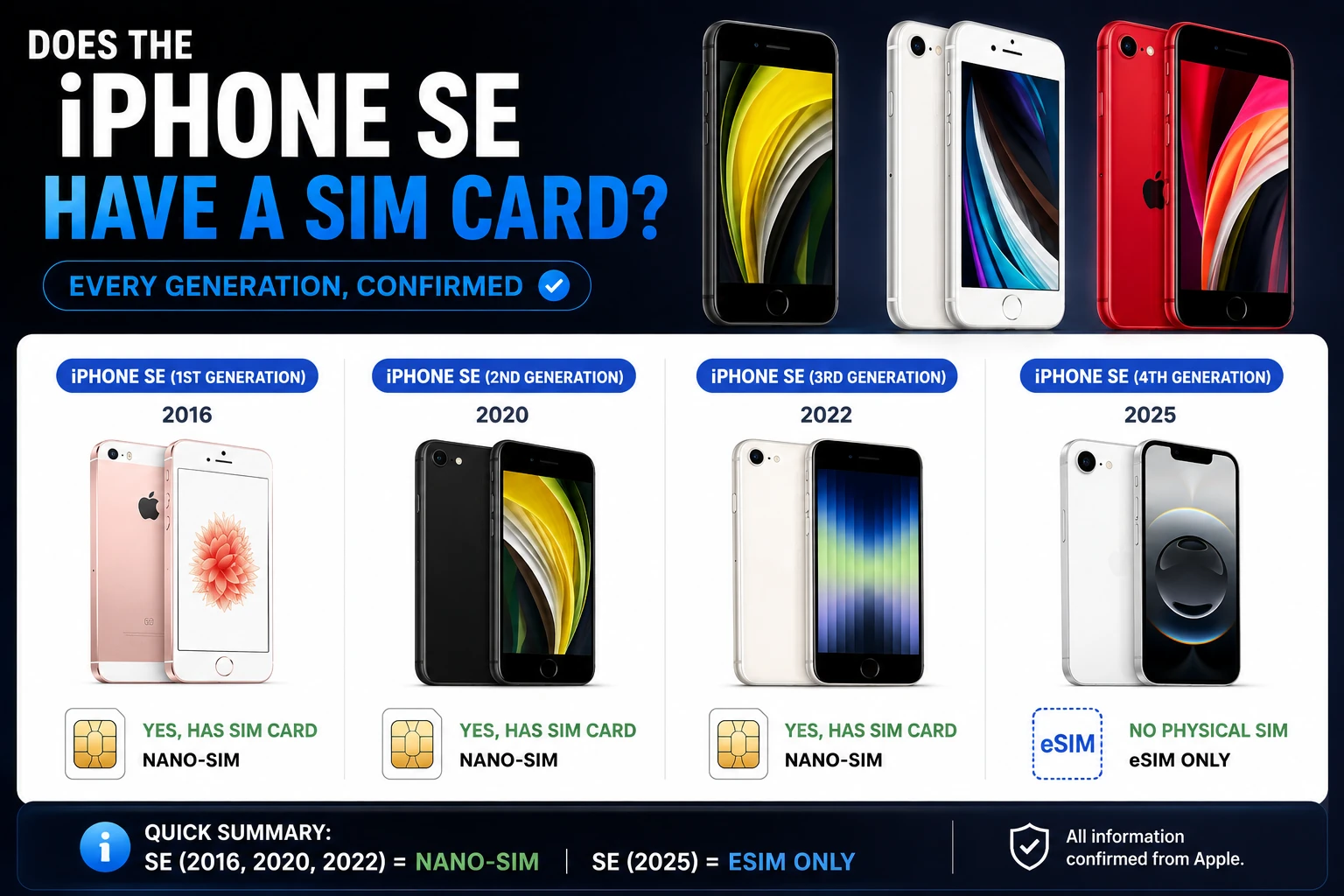
Yes — every iPhone SE has a physical nano-SIM tray, all three generations of it. The tray is on the right side of the phone. The 1st and 2nd generation SE take a nano-SIM and nothing else. The 3rd generation SE adds eSIM on top, so it can run a physical SIM and an eSIM together.
The confusion is understandable: iPhones sold in the United States lost their SIM trays from the iPhone 14 onward, and the SE’s replacement — the iPhone 16e — is eSIM-only in the US. But the SE line itself never went tray-free. Here is exactly what each model takes, grouped the way Apple’s own SIM-type list groups them.
Quick answer by generation
| Model | Nano-SIM tray? | eSIM? | Tray location |
|---|---|---|---|
| iPhone SE (3rd generation), 2022 | Yes | Yes | Right side |
| iPhone SE (2nd generation), 2020 | Yes | No | Right side |
| iPhone SE (1st generation), 2016 | Yes | No | Right side |
| iPhone 16e (the SE’s successor), US models | No | Yes | — |
| iPhone 16e, models bought outside the US | Yes | Yes | Left side |
Apple lists the iPhone SE (2nd generation or earlier) under “Nano-SIM card only”, alongside the iPhone X, iPhone 8 and older. The iPhone SE (3rd generation) sits in the “eSIM and nano-SIM” group with the iPhone 11, 12 and 13 families. No SE appears in the eSIM-only group at all.
Which SE do I actually have?
All three look broadly similar from the front, and the SIM answer differs between them, so it is worth being certain:
- iPhone SE (1st generation) — the small 4-inch body, squared edges, shaped like an iPhone 5s. Released 2016.
- iPhone SE (2nd generation) — 4.7-inch screen with a Home button and thick bezels, the iPhone 8 shape. Released 2020.
- iPhone SE (3rd generation) — the same iPhone 8 shape as the 2nd generation, but with 5G. Released 2022.
The reliable way to tell the 2nd from the 3rd, since they share a body, is Settings > General > About, which names the model outright. If Settings > Cellular offers Add eSIM or Set Up Cellular, you have the 3rd generation — the 2nd generation has no eSIM to add.
Where the SIM tray is, and how to open it
Apple groups iPhones by tray position, and iPhone SE (1st, 2nd, and 3rd generation) all sit in the “SIM tray on the right side” list, along with the iPhone 11, XR, XS and X.
Apple’s documented method:
- Insert a paper clip or a SIM-eject tool into the small hole beside the tray.
- Push in, towards the iPhone — but do not force it.
- Remove the tray. Notice the notch in one corner of the new SIM card.
- Place the new SIM into the tray. It fits only one way, because of the notch.
- Insert the tray back into the phone completely, in the same orientation you removed it. The tray also fits only one way.
Two warnings from Apple are worth taking seriously. Use only the SIM tray that came with your device — trays are not interchangeable between models. And damage caused by a modified SIM card is not covered by the Apple hardware warranty: cutting a larger SIM down to nano size can prevent a cellular connection or damage the tray. If your old card does not fit, Apple’s advice is to contact your carrier and have the account moved to a correctly sized SIM.
If the tray will not budge, Apple’s guidance is to stop and take the device to your carrier or an Apple Store rather than apply more force.
The SE (3rd generation) and eSIM
The 3rd generation SE supports one eSIM alongside the physical nano-SIM. That gives you two lines on one phone — useful for a work number, or a local data plan while travelling without giving up your home number.
What it does not do is Dual eSIM, which means two eSIM profiles active at the same time. Apple documents Dual eSIM support as starting with the iPhone 13 family. On the SE (3rd generation), the second line has to be the physical SIM.
You can also convert the physical SIM to an eSIM on the same phone if your carrier supports it, freeing the tray. The path is Settings > Cellular > Set Up Cellular or Add eSIM, choose the number that is on a physical SIM, then tap Convert to eSIM. Our guide to transferring a SIM card to a new iPhone covers that flow and eSIM Quick Transfer in full.
What replaced the SE, and why it matters
Apple’s budget line is now the iPhone 16e, and it is where the SIM answer changes. Apple lists iPhone 16e models purchased in the United States as eSIM only — no tray at all. Models of the same phone purchased outside the United States are listed under eSIM and nano-SIM, and their tray is on the left side.
So if you are upgrading from an SE and buying in the US, the physical SIM habit ends there. Your carrier issues an eSIM profile instead, and the plastic card from your old SE has nowhere to go. That is not a defect and there is no adapter for it. For the complete model-by-model picture, see our breakdown of which iPhones have eSIM.
One regional exception worth noting if you buy abroad: Apple states that in Hong Kong and Macao, certain iPhone models feature Dual SIM with two nano-SIM cards, and that in China mainland only the iPhone 17e and iPhone Air support eSIM. Regional variants of the same model number genuinely behave differently.
Frequently Asked Questions
Does the iPhone SE 2020 have a SIM card slot?
Yes. The iPhone SE (2nd generation), released in 2020, has a nano-SIM tray on the right side of the phone. Apple lists it under “Nano-SIM card only,” which means the physical card is the only option — that model does not support eSIM.
Does the iPhone SE 3rd generation have eSIM?
Yes. Apple lists the iPhone SE (3rd generation) in the “eSIM and nano-SIM” group, so it supports one eSIM plus a physical nano-SIM at the same time. It does not support Dual eSIM — two simultaneously active eSIM profiles start with the iPhone 13 family.
Which side is the SIM tray on an iPhone SE?
The right side, on all three generations. Apple’s tray-location list puts iPhone SE (1st, 2nd, and 3rd generation) together with the iPhone 11, XR, XS and X in the right-side group. Open it with a paper clip or SIM-eject tool in the hole beside the tray.
Can I put my iPhone SE SIM card into an iPhone 16e?
Not if the iPhone 16e was purchased in the United States — Apple lists US models as eSIM only, with no SIM tray. Models bought outside the US do have a nano-SIM tray, on the left side, and a nano-SIM from an SE will fit. For a US 16e, ask your carrier to issue an eSIM instead.
What happens if I cut a bigger SIM card down to fit the SE?
Apple warns that cutting or modifying a SIM card to fit a different device might prevent connection to cellular networks or access to certain features, and that damage to the SIM tray or device caused by a modified SIM is not covered by the Apple hardware warranty. Ask your carrier for a correctly sized nano-SIM instead.
The bottom line
All three iPhone SE generations have a physical nano-SIM tray on the right-hand side. The 3rd generation additionally supports a single eSIM, giving you two lines; the 1st and 2nd generations are nano-SIM only with no eSIM path. The tray-free era starts with the iPhone 16e in the US, not with the SE.
More iPhone coverage on Tech2Post: which iPhones have eSIM, how to transfer a SIM card to a new iPhone, and how to change your iPhone phone number.
Related reading: the Samsung Galaxy Z Fold 8 and the best smartphones for trekking for the dual-SIM picture on Android, the Android 16 Nothing OS 4.0 rollout, the FBI messaging warning, screenshots on iPad, and what latency means for a mobile connection.
Sources: Apple — Learn which type SIM your iPhone or iPad uses and Apple — Remove or switch the SIM card in your iPhone. Model groupings, tray locations, the removal procedure and the warranty warning are taken directly from those documents.


