


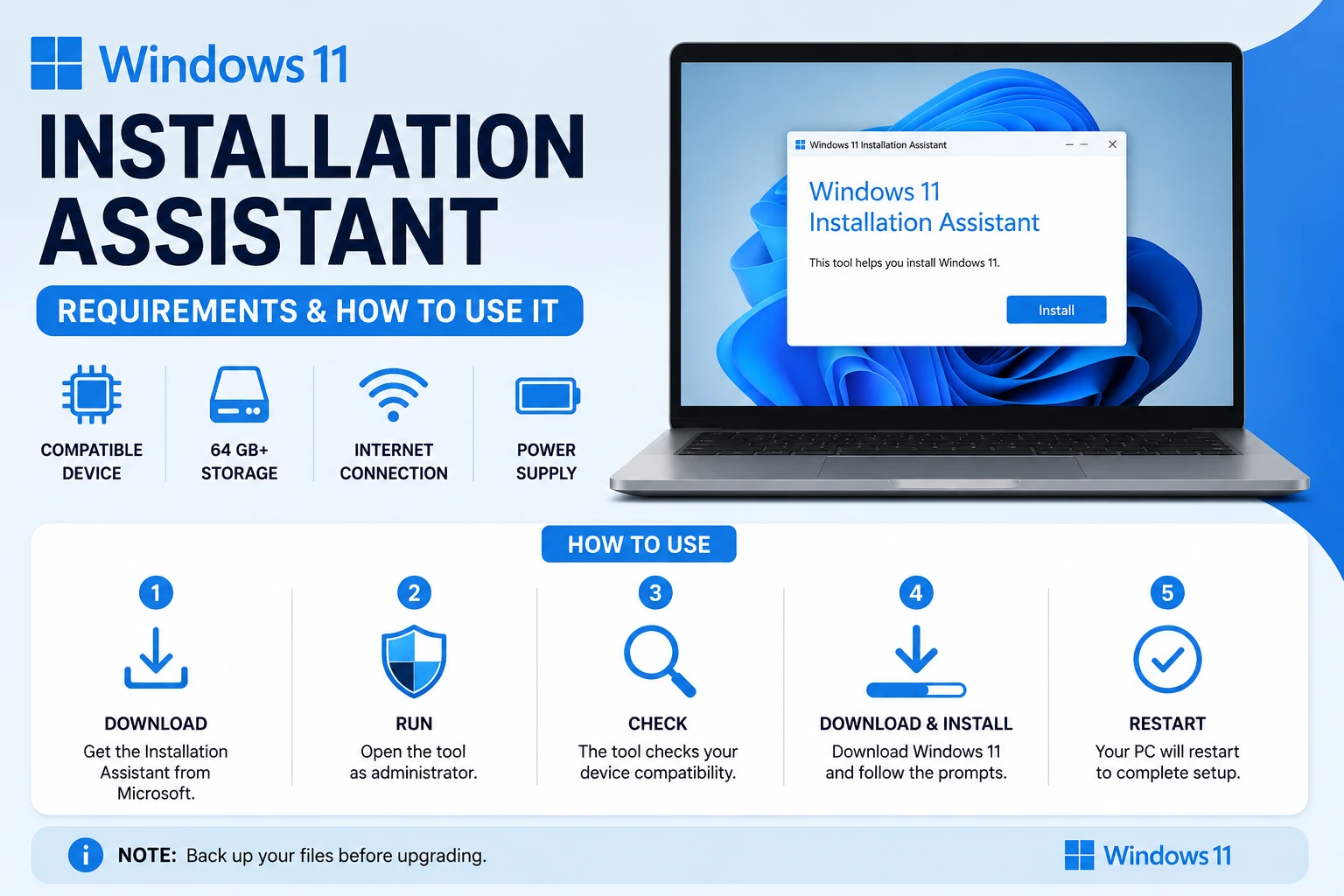
The Windows 11 Installation Assistant is Microsoft’s one-click upgrade tool for the PC you are sitting at. It downloads Windows 11 and installs it over your existing Windows 10 or Windows 11 install, keeping your files and apps. It is not an ISO, it is not a bootable USB creator, and it cannot install Windows on a different machine.
Microsoft publishes it on the official Download Windows 11 page as the first of three options. The current release it installs is the Windows 11 2025 Update, version 25H2. Below is what it needs, what it does, and when the other two options are the better choice.
Requirements, as Microsoft states them
The Installation Assistant has its own prerequisites on top of the general Windows 11 hardware requirements:
| Requirement | Detail |
|---|---|
| Existing Windows version | Windows 10, version 2004 or higher, already installed |
| Free disk space | 9 GB, to download Windows 11 |
| Processor architecture | x64 only — it does not run on Arm-based PCs |
| Account rights | You must be an administrator to run the tool |
| Licence | A current Windows 10 or Windows 11 licence |
Two of these catch people out. The first is the Arm exclusion: Microsoft states that “Windows 11 Installation Assistant doesn’t run on Arm-based PCs.” If you own a Snapdragon-powered Copilot+ laptop or another Arm device, this tool is not for you, and neither are the media creation and ISO downloads on the same page — Microsoft lists all three as x64.
The second is the 9 GB of free space, which is for the download alone. The installation itself needs headroom beyond that. If your drive is close to full, clear space before you start rather than half way through.
How to run it
- Go to Microsoft’s official Download Windows 11 page and select Download Now under Windows 11 Installation Assistant.
- Run the downloaded file. Accept the User Account Control prompt — the tool needs administrator rights.
- The tool checks your hardware against the Windows 11 requirements.
- Once it confirms your device is compatible, it presents the licence terms. Select Accept and Install.
- Windows 11 downloads and installs in the background. You can keep using the PC during this stage.
- When the tool is ready, select Restart Now to complete installation.
Microsoft’s own note on timing is worth repeating: it might take some time to install Windows 11, and your PC will restart a few times. Those restarts are part of the process, not a fault. Do not force a power-off during them.
What happens to your files and apps
An Installation Assistant upgrade is an in-place upgrade. Your files, installed applications and most settings carry over. That is the whole point of the tool — it is the low-friction path from Windows 10 to Windows 11 on hardware you are already using.
“Carries over” is not “guaranteed.” Back up anything you cannot replace before starting. Low-level utilities are the usual casualties: antivirus suites, VPN clients, disk encryption tools and vendor drivers occasionally need reinstalling on the other side. Mainstream applications almost never do.
Installation Assistant vs the other two downloads
Microsoft’s download page offers three tools, and choosing wrong wastes an evening:
| Tool | Use it when | Installs on another PC? |
|---|---|---|
| Installation Assistant | Upgrading this PC in place, keeping files and apps | No |
| Create Windows 11 Installation Media | Making a bootable USB or DVD for a clean install | Yes |
| Download Windows 11 Disk Image (ISO) | Virtual machines, or building your own bootable media in multiple languages | Yes |
The distinction that matters: the Installation Assistant is device-specific. It cannot create installation media for other computers. If you are setting up a second machine, refurbishing an old one, or want a genuinely clean install rather than an upgrade, use the Media Creation Tool or the ISO. All three are x64 only.
When the Installation Assistant says your PC is not supported
The tool runs a compatibility check before it will install anything, and the most common stop is a hardware requirement rather than a bug. The usual culprits are TPM 2.0, Secure Boot and the supported-processor list.
There is a well-known mismatch worth knowing about: PC Health Check can report that a machine meets the Windows 11 requirements while the Installation Assistant still refuses. The two tools do not evaluate identical conditions, and the Assistant is the stricter gate. When they disagree, the Assistant’s answer is the one that decides whether the upgrade proceeds.
If your PC genuinely does not meet the requirements, the honest answer is that Microsoft does not support installing Windows 11 on it. Workarounds exist and are widely published; they also leave you on a configuration Microsoft has not committed to updating. That is a real risk to weigh, not a footnote — an unsupported install that stops receiving security updates is worse than a supported Windows 10 machine you retire on your own schedule.
After the upgrade
Two things are worth doing on the first boot into Windows 11. First, check Windows Update again — feature upgrades routinely land before the newest cumulative update and drivers. Second, expect the desktop to look unfamiliar: the Start button and icons sit in the centre of the taskbar by default, and the taskbar itself behaves differently from Windows 10’s. Our guide to the Windows 11 taskbar covers moving the icons back to the left and reclaiming the settings you are used to.
If the machine is shared, confirm account rights before you hand it back. Changing the administrator on Windows 11 walks through promoting and demoting accounts after an upgrade, which is the point at which permissions are easiest to get wrong.
Frequently Asked Questions
Is the Windows 11 Installation Assistant free?
The tool itself is a free download from Microsoft’s official Download Windows 11 page. It does not grant a licence, though — Microsoft lists having a current Windows 10 or Windows 11 licence among the conditions before you begin. If your existing Windows is activated, the upgrade carries that entitlement across.
Does the Installation Assistant delete my files?
No. It performs an in-place upgrade that keeps your files, applications and most settings. Back up anything irreplaceable first anyway — low-level software such as antivirus, VPN and disk-encryption tools sometimes needs reinstalling after a major version upgrade.
Can I use the Installation Assistant on an Arm laptop?
No. Microsoft states that the Windows 11 Installation Assistant does not run on Arm-based PCs; it works only for x64 processors. Microsoft’s Media Creation Tool and ISO download on the same page are also listed as x64. Arm devices are updated through Windows Update or the manufacturer instead.
How much disk space do I need?
Microsoft specifies 9 GB of free disk space to download Windows 11 with the Installation Assistant. Installation needs additional headroom on top of the download, so free more than the stated minimum if your drive is nearly full.
How long does the upgrade take?
Microsoft says only that it might take some time and that your PC will restart a few times. In practice the download dominates on a slow connection and the install stage dominates on a mechanical hard drive. Plan for an hour or more of unattended time, and do not power the machine off during the restarts.
The bottom line
Use the Installation Assistant when you want the PC in front of you upgraded to Windows 11 version 25H2 with your files and apps intact, you are on Windows 10 version 2004 or later, you have 9 GB free, and the machine is x64. Use the Media Creation Tool or ISO for any other scenario, including a clean install or a second computer. And if the compatibility check fails, treat that as information about the hardware rather than an obstacle to route around.
More Windows coverage on Tech2Post: customizing the Windows 11 taskbar after the upgrade, changing the administrator account, and turning off Sticky Keys.
Related reading: optimizing a gaming PC for the post-upgrade tuning pass, what latency actually means, MacBook Neo specs and price for the other side of the aisle, taking screenshots on any device, connecting AirPods to a laptop, and the best AI coding tools in 2026 if the new install is a development machine.
Sources: Microsoft — Download Windows 11 and Microsoft — Ways to install Windows 11. Requirements, the Arm limitation, the 9 GB figure, the version installed and the Accept and Install / Restart Now flow are taken from Microsoft’s own pages.
