


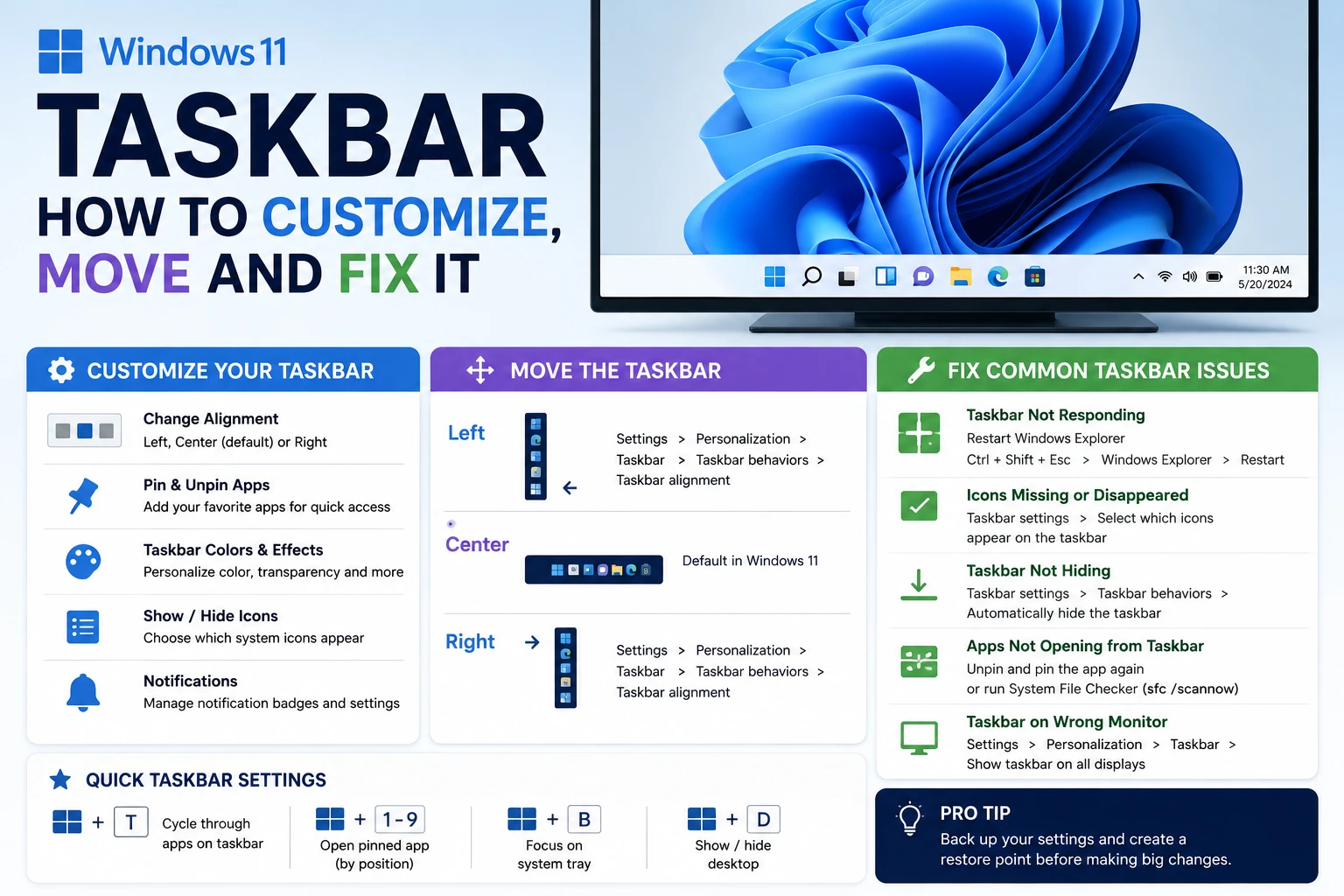
Everything on the Windows 11 taskbar is controlled from one screen: right-click an empty part of the taskbar and choose Taskbar settings. That page holds alignment, which items appear, the system tray, and auto-hide. The one thing it does not hold is a way to move the taskbar to the top or side of the screen — Microsoft removed that option in Windows 11 and has not brought it back.
Microsoft states it plainly in its own documentation: “There are no settings for moving a taskbar to the top or to the side of the screen. The taskbar is positioned at the bottom of the screen.” Every guide promising a registry trick is describing behaviour that either breaks on update or never worked on current builds. Below is what you can change, with the exact setting names as they appear in Windows.
Open Taskbar settings
There are two routes, and they land in the same place:
- Right-click any empty area of the taskbar, then select Taskbar settings.
- Or press Windows + R and run
ms-settings:taskbar.
The second one is worth remembering. If your taskbar is misbehaving badly enough that right-click does nothing, the ms-settings: URI still opens the page.
Move the taskbar icons to the left
Windows 11 centres the taskbar icons by default. That is the single most-reverted change in the operating system, and it takes four clicks to undo:
- Right-click the taskbar and select Taskbar settings.
- Scroll to Taskbar behaviors and expand it.
- Find Taskbar alignment.
- Change it from Center to Left.
The Start button moves to the corner immediately — no sign-out, no restart. Switching back is the same four clicks.
Why you cannot move the taskbar to the top
This is a real regression from Windows 10, not something you have configured wrong. Windows 10 let you drag the taskbar to any edge of the screen. Windows 11 rebuilt the taskbar on a different UI framework, and vertical positioning was not carried across. Microsoft’s support page for taskbar customization says so directly. Third-party shell replacements can fake it, but they sit between you and the operating system and tend to break at each feature update — a poor trade for a habit you can retrain in a week.
Choose which items appear
In Taskbar settings, the Taskbar items group controls the four built-in buttons. Each is a simple on/off toggle except Search, which has a dropdown:
| Item | What it does | Options |
|---|---|---|
| Search | The search entry point next to Start | Search box · Search icon and label · Search icon only · Hide |
| Task view | Open windows and virtual desktops | On / Off |
| Widgets | The dynamic news and weather panel | On / Off |
| Chat / other | Varies by build and region | On / Off |
Turning Search down to Search icon only is the best value change on this page: you keep the function and recover a large block of taskbar width. Turning Widgets off stops the hover-activated weather panel from sliding open when your cursor drifts to the corner, which is the most common complaint about it.
Hiding Task view does not disable virtual desktops. Windows + Tab still opens the same interface, and Windows + Ctrl + Left/Right arrow still switches desktops. You are only hiding the button.
Clean up the system tray
The right-hand corner is governed by two separate groups in Taskbar settings, and knowing which is which saves a lot of hunting:
- System tray icons — Microsoft’s own optional inputs: Pen menu, Touch keyboard and Virtual touchpad. Each shows only when relevant hardware or input mode is present.
- Other system tray icons — everything installed apps put there. This group also controls the hidden icon menu, the overflow chevron that holds icons you have not promoted to the visible tray.
Toggle an app on in that second group and it sits permanently in the corner; leave it off and it lives behind the chevron. Nothing is uninstalled either way — you are choosing visibility, not presence.
Auto-hide the taskbar
Under Taskbar behaviors, tick Automatically hide the taskbar. The bar slides away until you push the pointer into the bottom edge of the screen.
On a 1080p laptop this returns roughly 48 pixels of vertical space, which matters more than it sounds when you are reading a long document or working in a timeline. The trade-off is that notification badges become invisible until you go looking. If you rely on unread counts in Teams or Outlook, leave auto-hide off.
Auto-hide is also the setting most often blamed for a taskbar that “won’t disappear” over a full-screen video. When a background app has a pending notification, Windows holds the taskbar visible on purpose. Clearing the notification releases it.
Pin and unpin apps
Microsoft documents the pinning flow as follows:
- To pin: search for the app, right-click it, then select Pin to taskbar.
- To unpin: right-click the pinned icon and select Unpin from taskbar.
An app that is already running can be pinned the same way — right-click its taskbar button and choose Pin to taskbar, and the icon stays after you close the window. Pinned icons can be dragged into any order you like; the order persists across restarts and, if you sign in with a Microsoft account, generally follows you to other machines.
Every pinned app in the first ten positions also gets a keyboard shortcut: Windows + 1 through Windows + 0, counted left to right from the first pinned icon. Reordering your pins reorders the shortcuts, which is the fastest launcher Windows ships with and the reason it is worth putting your three most-used apps first.
When the taskbar stops responding
A frozen taskbar — clock stuck, Start button dead, icons unresponsive — is almost always Windows Explorer, not the taskbar itself. The taskbar is drawn by explorer.exe, so restarting that process rebuilds it without a reboot:
- Press Ctrl + Shift + Esc to open Task Manager.
- Find Windows Explorer in the Processes list.
- Select it, then choose Restart task.
The screen flickers and the desktop redraws in a second or two. Open applications are unaffected — only the shell restarts. If the taskbar breaks again within minutes, the cause is usually a shell extension from a third-party app rather than Windows itself, and the fix is to update or remove that app.
If icons are missing rather than frozen, check Taskbar items first. It is common to turn Search or Task view off while experimenting and then forget. Administrator-level changes on a shared machine can also come from another account with rights over yours — our guide to changing the administrator on Windows 11 covers how to check who holds those rights.
Frequently Asked Questions
Can I move the Windows 11 taskbar to the top of the screen?
No. Microsoft’s support documentation states that there are no settings for moving the taskbar to the top or the side of the screen, and that the taskbar is positioned at the bottom. Registry edits circulated for early Windows 11 builds are not supported and generally break at feature updates. Only third-party shell replacements can reposition it, at the cost of stability.
How do I move Windows 11 taskbar icons to the left like Windows 10?
Right-click the taskbar, select Taskbar settings, expand Taskbar behaviors, and set Taskbar alignment to Left. The Start button moves to the bottom-left corner immediately, with no restart needed. This changes horizontal alignment only — the taskbar still sits along the bottom edge.
Why does my taskbar not hide in full screen?
Windows keeps the taskbar visible when an app has a pending notification, even with Automatically hide the taskbar switched on. Clear the notification by opening the app that raised it, and the taskbar retracts. If it persists with no notification present, restart Windows Explorer from Task Manager to rebuild the shell.
How do I get rid of the search box on the taskbar?
Open Taskbar settings and find Search under Taskbar items. Use the dropdown to pick Search icon only, which keeps the function in a single icon, or Hide, which removes it entirely. Search still works either way — press the Windows key and start typing.
Does restarting Windows Explorer close my open apps?
No. Restarting Windows Explorer from Task Manager rebuilds the desktop, taskbar and File Explorer windows only. Applications such as browsers, games and Office keep running, and unsaved work is not lost. Open File Explorer windows do close and need to be reopened.
The bottom line
Taskbar settings covers alignment, items, the system tray and auto-hide, and it is reachable in one right-click. Left alignment and Search icon only are the two changes worth making on any fresh install. Repositioning the bar to a screen edge is genuinely unavailable in Windows 11, and treating that as settled saves an afternoon chasing registry hacks that do not survive the next update.
More Windows tuning on Tech2Post: using the Windows 11 Installation Assistant to get onto a current build in the first place, changing the administrator account, and turning off Sticky Keys — the other accessibility toggle people trip into by accident.
If your machine is for gaming, the taskbar is only the visible layer: our guide to optimizing a gaming PC deals with what runs underneath it, and what latency actually means explains why a responsive desktop and a responsive game are two different problems. For peripherals, see connecting a PS5 controller to a PC and pairing AirPods with a laptop. Screenshot workflows are covered in screenshots on any device and screenshots on a Chromebook.
Sources: Microsoft — Customize the Taskbar in Windows and Microsoft — Customize the Windows Start Menu. Setting names, the Search dropdown options and the statement that the taskbar cannot be moved to the top or sides are taken from Microsoft’s documentation.
