


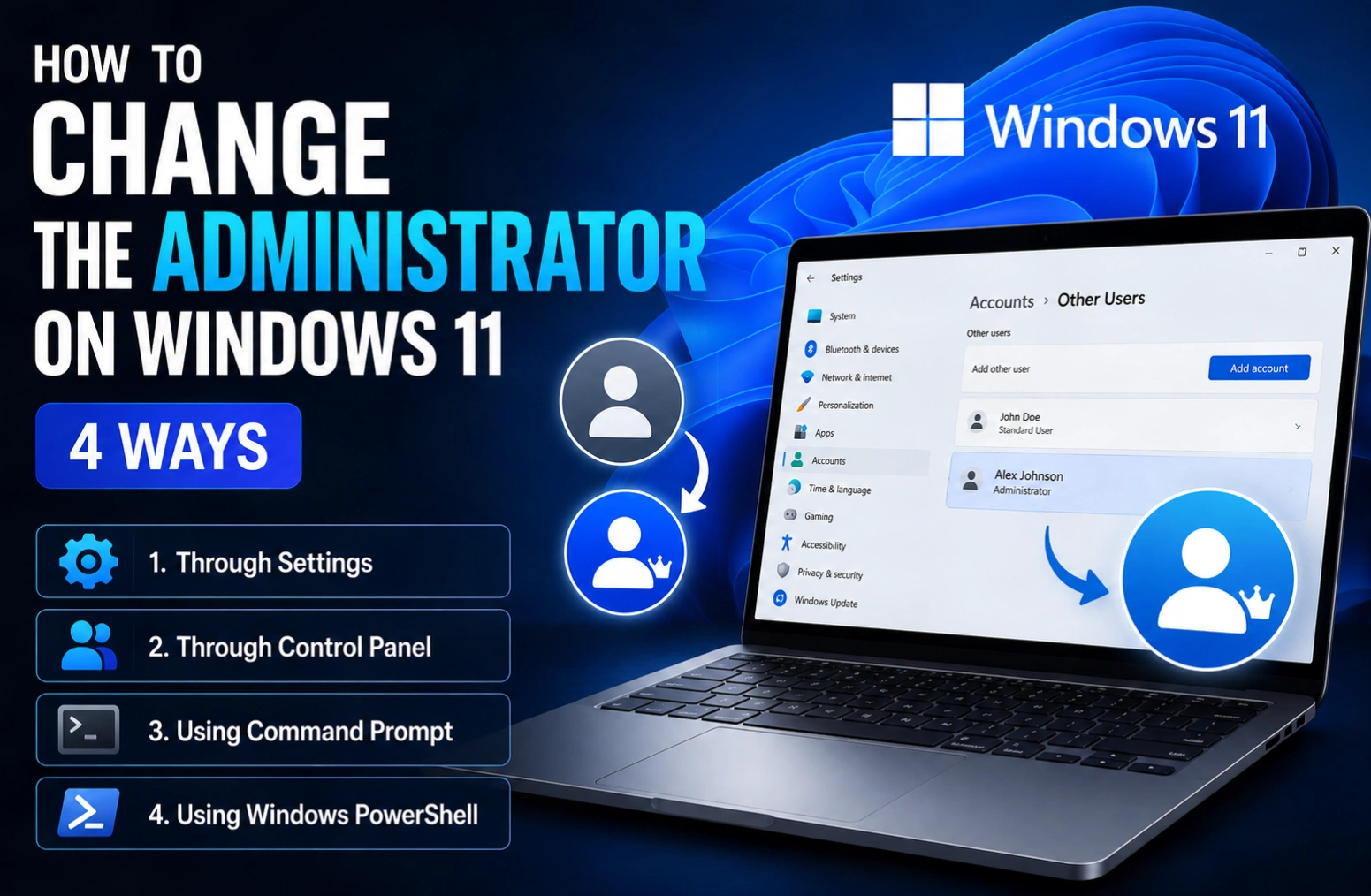
To change the administrator on Windows 11, open Settings → Accounts → Other users, select the account, choose Change account type, and set it to Administrator. You must already be signed in as an administrator to do this. The change takes effect the next time that user signs in.
That covers the common case. But “change the administrator” means three different things depending on who is asking — promoting someone else, demoting yourself, or taking over a PC whose only admin account you have lost access to. Those need different answers, and the last one is where most guides quietly stop being useful.
Method 1: Settings (the one Microsoft documents)
This is the supported path and the one to use unless you have a reason not to.
- Open Settings (Windows + I).
- Go to Accounts → Other users. On some builds this reads Family & other users.
- Find the account you want to promote and click it to expand the panel.
- Next to Account options, select Change account type.
- From the dropdown, select Administrator, then select OK.
Microsoft’s own guidance is worth repeating here: “you should limit the number of administrators on your Windows device because administrators have complete control over the system. Administrators can change settings, install software” and modify other accounts. Two admin accounts on a family PC is reasonable. Five is a liability.
If Change account type is greyed out, you are not signed in as an administrator. There is no way around that from within Settings — see Method 4.
Method 2: Control Panel
The legacy path still works and is sometimes faster if you are already there.
- Press Windows + R, type
control, press Enter. - Go to User Accounts → User Accounts → Manage another account.
- Select the account, then Change the account type.
- Choose Administrator and confirm with Change Account Type.
Method 3: Command line (fastest, and works on any edition)
Open Terminal (Admin) by right-clicking the Start button. Then run one of these.
Command Prompt:
net localgroup administrators "AccountName" /addPowerShell (see Microsoft’s Add-LocalGroupMember reference):
Add-LocalGroupMember -Group "Administrators" -Member "AccountName"To demote an account back to standard user, remove it from the Administrators group:
net localgroup administrators "AccountName" /deleteTo see who currently has administrator rights on the machine:
net localgroup administratorsFor a Microsoft account rather than a local one, the account name is usually the first five characters of the email address — check the output of net user first rather than guessing.
Method 4: You have lost access to the only administrator account
This is the situation people actually search for, and it is genuinely harder, because Windows is working as designed when it refuses you.
Your realistic options, in order of preference:
| Situation | What works |
|---|---|
| Admin account is a Microsoft account and you forgot the password | Reset it at account.live.com from any device. This is the clean fix. |
| Admin account is a local account with security questions set | Answer them at the sign-in screen after a failed attempt. |
| Local admin, no security questions, but another admin exists | Sign in as that admin and use Method 1 or 3. |
| Local admin, no recovery, no second admin | No supported recovery. A clean reinstall of Windows is the honest answer. |
The built-in hidden Administrator account is disabled by default and enabling it still requires an existing administrator, so it does not help in a genuine lockout. Guides that recommend swapping utilman.exe or sethc.exe from recovery media are describing a technique that modern Windows blocks, that Secure Boot and BitLocker interfere with, and that may violate your workplace IT policy. We are not going to walk you through it.
If the device is BitLocker-encrypted — the default on many prebuilt Windows 11 PCs — you will need your recovery key before any repair path works at all. Microsoft documents where to find your BitLocker recovery key — for most people it is stored under their Microsoft account.
Administrator vs standard user: what actually changes
| Action | Administrator | Standard user |
|---|---|---|
| Install most desktop apps | Yes | Needs admin approval |
| Install from Microsoft Store | Yes | Yes |
| Change system-wide settings | Yes | No |
| Create, delete or promote accounts | Yes | No |
| Run elevated commands | Yes | No |
| Change own password and personal settings | Yes | Yes |
Microsoft frames the split around households and shared devices: parents “can have their own accounts with administrative privileges to manage settings and install software, while children can have standard accounts” with parental controls. The same logic applies to a work laptop that occasionally gets borrowed.
Demoting yourself: read this first
Windows will not let you remove administrator rights from the last remaining administrator account, and that guardrail is the only thing standing between you and a reinstall. Before demoting yourself:
- Create or promote a second administrator account.
- Sign in to it once to confirm the password works and the profile builds correctly.
- Only then demote the original account.
Step 2 is the one people skip. An admin account you have never successfully signed into is not a safety net.
Frequently asked questions
Why is Change account type greyed out on Windows 11?
Because the account you are currently signed in with is a standard user, not an administrator. Windows deliberately hides account management from non-admins. Sign in with an administrator account, or ask whoever administers the device. On a work or school PC, the option may also be blocked by policy set by your IT department.
How do I change the administrator without knowing the current password?
If the admin account is a Microsoft account, reset the password online at account.live.com and sign in normally. If it is a local account with security questions, answer them at the sign-in screen. Without either, and with no second administrator on the device, there is no supported recovery path short of reinstalling Windows.
Can there be more than one administrator on Windows 11?
Yes, and there should be at least two on any machine you rely on. A second administrator account is the difference between a five-minute fix and a full reinstall if the first one breaks. Microsoft still recommends keeping the number small, because each admin has complete control over the system.
Does changing account type require a restart?
No restart is needed, but the affected user must sign out and sign back in before the new privileges apply. If the change does not seem to take effect, sign the account out completely rather than just locking the screen, then verify with net localgroup administrators from an elevated terminal.
Is the hidden built-in Administrator account safe to enable?
It works, but it is disabled by default for good reason: it has no User Account Control prompts, so every process it launches runs fully elevated. Use a normal administrator account instead. Enabling the built-in account also requires existing administrator rights, so it is no help during a lockout.
The bottom line
For the everyday case, Settings → Accounts → Other users → Change account type is the whole job, and it takes about twenty seconds. The command line version is quicker if you are comfortable there and works identically on Home and Pro. What no method can do is manufacture administrator rights you do not already have — so the genuinely useful move is to create a spare admin account today, while you still can.
More Windows guides on Tech2Post: turning Sticky Keys on and off in Windows 10 and 11, taking a screenshot on any device, screenshots on a Chromebook, and how to optimise a gaming PC if the machine you just took over is also the one you game on.
Also worth reading: how to remove your Amazon order history, what latency means, the best AI coding tools in 2026, and 10 AI tools for productivity.
Source: Microsoft — Manage User Accounts in Windows. The Settings navigation path and the guidance on limiting administrator count are taken from that document.
