


To turn off Sticky Keys in Windows 11, go to Settings > Accessibility > Keyboard and switch Sticky keys off. In Windows 10, go to Settings > Ease of Access > Keyboard and switch Use Sticky Keys off. To turn Sticky Keys on, flip the same switch the other way.
That is the whole answer for most people. If Sticky Keys keeps switching itself back on, or the pop-up returns every time you press Shift a few times in a row, you need to disable the keyboard shortcut as well — that is covered in Stop the Sticky Keys pop-up below.
Quick reference
| What you want | Fastest route |
|---|---|
| Turn Sticky Keys off (Windows 11) | Settings > Accessibility > Keyboard > Sticky keys → Off |
| Turn Sticky Keys off (Windows 10) | Settings > Ease of Access > Keyboard > Use Sticky Keys → Off |
| Turn Sticky Keys on | Same screens — switch On, or press Shift five times |
| Stop the pop-up appearing | Uncheck Allow the shortcut key to start Sticky Keys |
| Turn it off for every user on the PC | Control Panel > Ease of Access Center |
What are Sticky Keys?
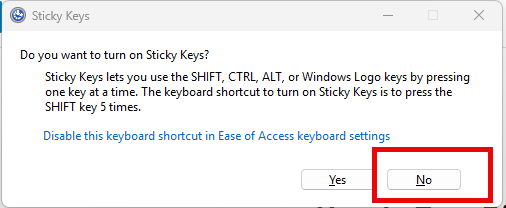
Sticky Keys is a Windows accessibility feature that lets you use keyboard shortcuts one key at a time instead of holding several keys down together. With it enabled, pressing Ctrl and then C in sequence does the same thing as holding Ctrl+C together.
It applies to the four modifier keys: Shift, Ctrl, Alt, and the Windows key. Windows has shipped it since Windows 95, and it exists for a genuine reason — it makes a keyboard usable for people who type with one hand, use a mouth stick or head pointer, or have limited hand mobility or a condition such as arthritis or repetitive strain injury.
Most people meet it by accident. Windows enables Sticky Keys when you press the Shift key five times in quick succession, which is easy to do while gaming, typing fast, or hammering Shift out of frustration at something else entirely.
How to tell if Sticky Keys is on
The clearest signs:
- Capital letters appear when you have not held Shift down.
- A chime plays when you press Shift, Ctrl, or Alt.
- A small icon showing the modifier keys sits in the system tray or on screen.
- Menus or shortcuts fire when you did not intend them to.
In games this is the most disruptive: crouch, sprint, and walk are commonly bound to Shift and Ctrl, so Sticky Keys turning on mid-match will make your character behave as if the keys are jammed. If you play often, it is worth disabling the shortcut permanently — and worth reading our guide to optimising a gaming PC for the other settings that quietly cost you performance.
How to turn off Sticky Keys in Windows 11
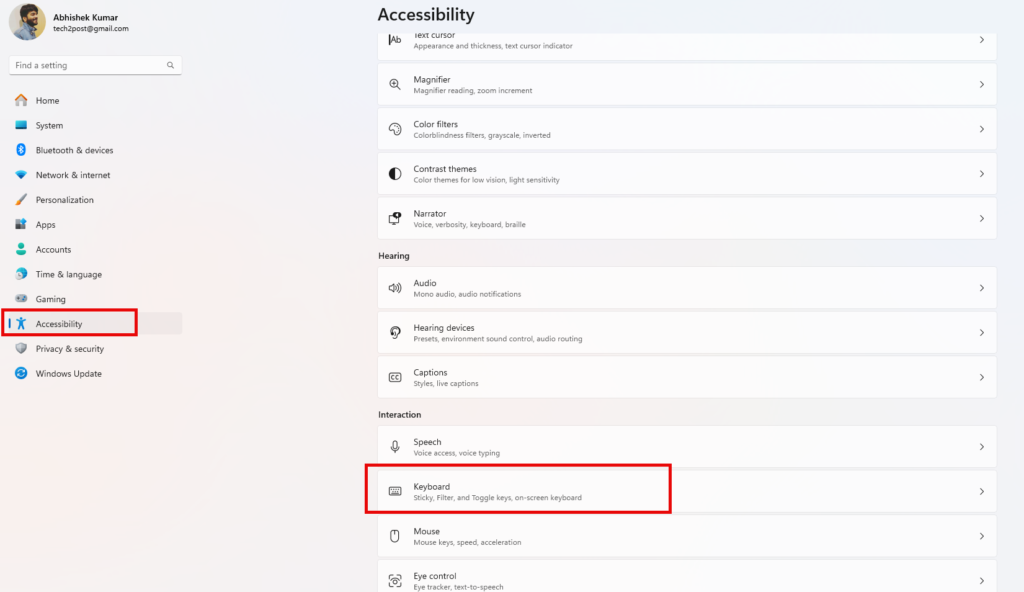
- Press Windows+I to open Settings.
- Select Accessibility in the left sidebar.
- Scroll to the Interaction group and click Keyboard.
- Switch Sticky keys to Off.
The change applies immediately — no restart, no sign-out.
While you are on that screen, click the arrow next to Sticky keys to expand its options. That is where you disable the five-press shortcut, which is what stops the feature coming back.
How to turn off Sticky Keys in Windows 10
- Press Windows+I to open Settings.
- Click Ease of Access.
- Select Keyboard from the left sidebar.
- Under Use Sticky Keys, switch the toggle to Off.
Windows 10 groups the shortcut setting directly beneath the toggle, as a checkbox labelled Allow the shortcut key to start Sticky Keys.
Stop the Sticky Keys pop-up returning
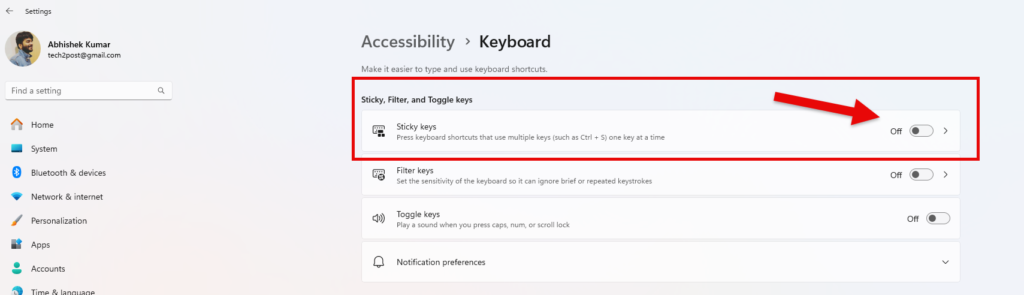
This is the step most guides skip, and it is the reason people find themselves turning Sticky Keys off over and over. Switching the feature off does not disable the shortcut that turns it back on. Until you clear that checkbox, any five quick presses of Shift will re-trigger the prompt.
Windows 11: Settings > Accessibility > Keyboard > expand Sticky keys > uncheck Keyboard shortcut for Sticky keys.
Windows 10: Settings > Ease of Access > Keyboard > uncheck Allow the shortcut key to start Sticky Keys.
With that cleared, the pop-up will not appear again and Sticky Keys can only be enabled deliberately from Settings.
Turn off Sticky Keys from the Control Panel
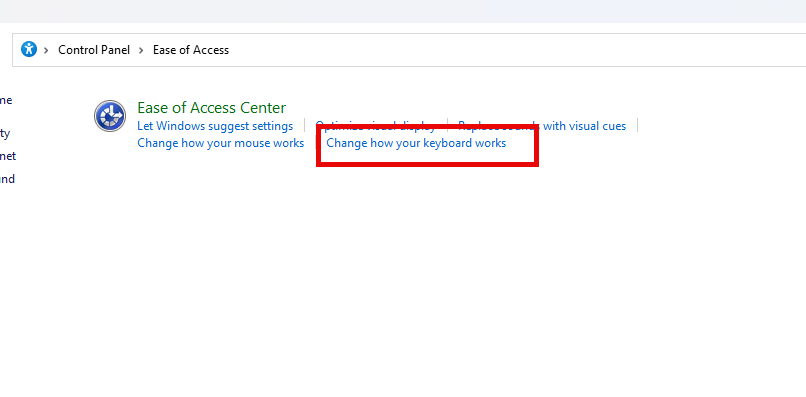
The Control Panel route still works in both Windows 10 and Windows 11, and it is useful when you are working on a machine where the Settings app has been restricted.
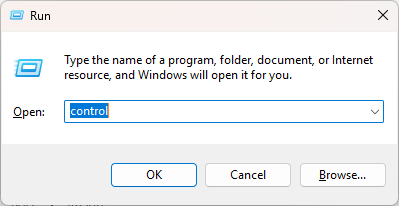
- Press Windows+R, type
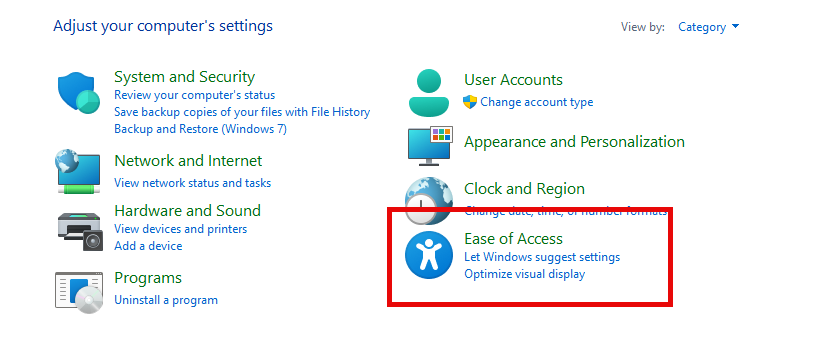
control, and press Enter. - Set View by to Category, then choose Ease of Access.
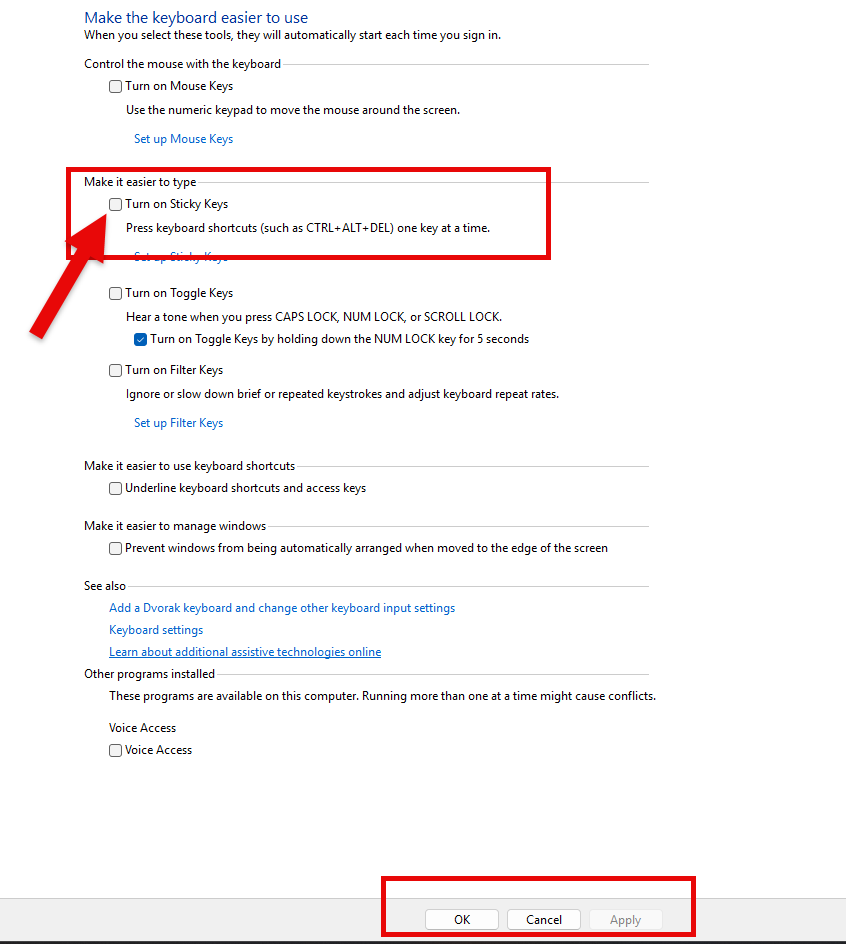
- Click Ease of Access Center, then Make the keyboard easier to use.
- Uncheck Turn on Sticky Keys.
- Click Set up Sticky Keys and uncheck Turn on Sticky Keys when SHIFT is pressed five times.
- Click Apply, then OK.
You can reach the same screen instantly by pressing Windows+R and running control access.cpl.
How to turn Sticky Keys on
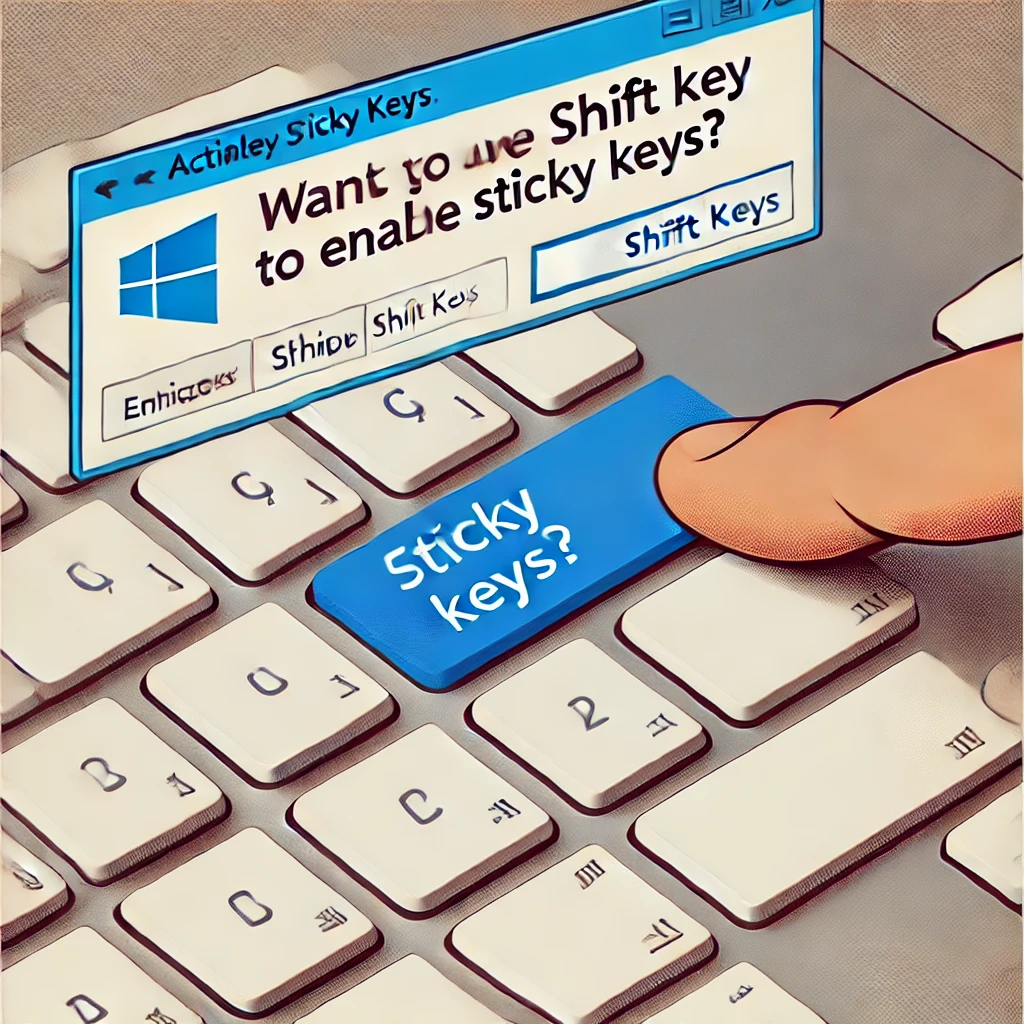
If you actually want the feature — and if you type one-handed or have limited mobility, it is genuinely useful — there are three ways to enable it:
- Shortcut: press Shift five times and confirm the prompt.
- Windows 11: Settings > Accessibility > Keyboard > Sticky keys → On.
- Windows 10: Settings > Ease of Access > Keyboard > Use Sticky Keys → On.
Once enabled, press a modifier key twice to lock it until you press it again — handy for holding Shift through a long run of capitals.
Troubleshooting: Sticky Keys will not turn off
It turns itself back on after a restart
You have disabled the feature but not the shortcut. Follow Stop the Sticky Keys pop-up returning above. This accounts for the large majority of cases.
The setting is greyed out
On a work or school PC, an administrator may have locked accessibility settings through Group Policy. You will need IT to change it — there is no user-side workaround, and attempting to bypass a managed policy is likely to violate your organisation’s acceptable-use terms.
Modifier keys still behave oddly with Sticky Keys off
Check the two neighbouring accessibility features, which have their own accidental shortcuts:
- Filter Keys — triggered by holding the right Shift for eight seconds. Makes Windows ignore brief or repeated keystrokes, so keys appear not to register.
- Toggle Keys — triggered by holding Num Lock for five seconds. Plays a tone when Caps Lock, Num Lock, or Scroll Lock changes.
Both sit on the same Settings page as Sticky Keys.
A key is physically stuck
If a modifier key behaves as though held down even in Safe Mode, the problem is hardware, not Windows. Debris under a keycap and worn membrane contacts are the usual causes. Test with an external keyboard to confirm before opening anything up.
It only happens in one game
Some games capture keyboard input in a way that conflicts with accessibility features. Running the game in borderless windowed mode, or disabling the shortcut entirely, generally resolves it.
Frequently asked questions
What is the Sticky Keys shortcut?
Press the Shift key five times in quick succession. Windows then asks whether you want to enable Sticky Keys. The same shortcut disables it when it is already on.
How do I turn off Sticky Keys on a laptop?
Exactly as on a desktop — the setting lives in Windows, not in the keyboard. Use Settings > Accessibility > Keyboard on Windows 11, or Settings > Ease of Access > Keyboard on Windows 10. Manufacturer-specific function keys do not affect it.
Does turning off Sticky Keys affect anything else?
No. It is an independent accessibility setting. Normal keyboard shortcuts continue to work exactly as before — you simply have to hold the keys together again.
Why does Sticky Keys keep turning on by itself?
It is almost never spontaneous. Something is pressing Shift five times — usually you, while gaming or typing quickly. Disable the keyboard shortcut and it will stop.
How do I turn off Sticky Keys when the laptop is locked?
The accessibility button on the sign-in screen opens the same controls. Click it, untick Sticky Keys, and the change applies before you sign in. To make it permanent for every user, change the setting from the Control Panel once signed in.
Is Sticky Keys the same as Caps Lock?
No. Caps Lock affects only letter case. Sticky Keys changes how the modifier keys — Shift, Ctrl, Alt, and Windows — are pressed, and affects every keyboard shortcut on the system.
Can I disable Sticky Keys for all users on a PC?
Yes. Use the Control Panel route above and tick Apply to all users and the Welcome screen in the Ease of Access Center. On a domain-managed machine this is better handled through Group Policy.
Related guides
- How to take a screenshot on any device — the other Windows keyboard question everybody eventually asks.
- How to optimise your gaming PC — where accidental Sticky Keys does the most damage.
- What is latency? — why input can feel delayed even when your keyboard is fine.
- How to remove order history from Amazon — another step-by-step Windows and web walkthrough.
- DeepSeek R1 explained — from our Technology desk.
- InstaNavigation guide — another practical tool walkthrough.
In short
Sticky Keys is a one-toggle fix in both Windows 10 and Windows 11, but turning it off is only half the job. Clear the five-press Shift shortcut at the same time and it will stay off for good. And if you have limited hand mobility, it is worth trying properly before you disable it — used deliberately, it makes a keyboard considerably easier to work with.
